Countdown
If your trip starts on October 20, a Countdown list can show how many days you have left to wait. The same layout works for a family reunion or another date you want to keep in view. It counts calendar days, not hours.
Countdown applies to the whole achievement list and requires Premium to create or save, like Checklist Pill. Each entry still has its own manual or automatic unlock setting; see the overview.
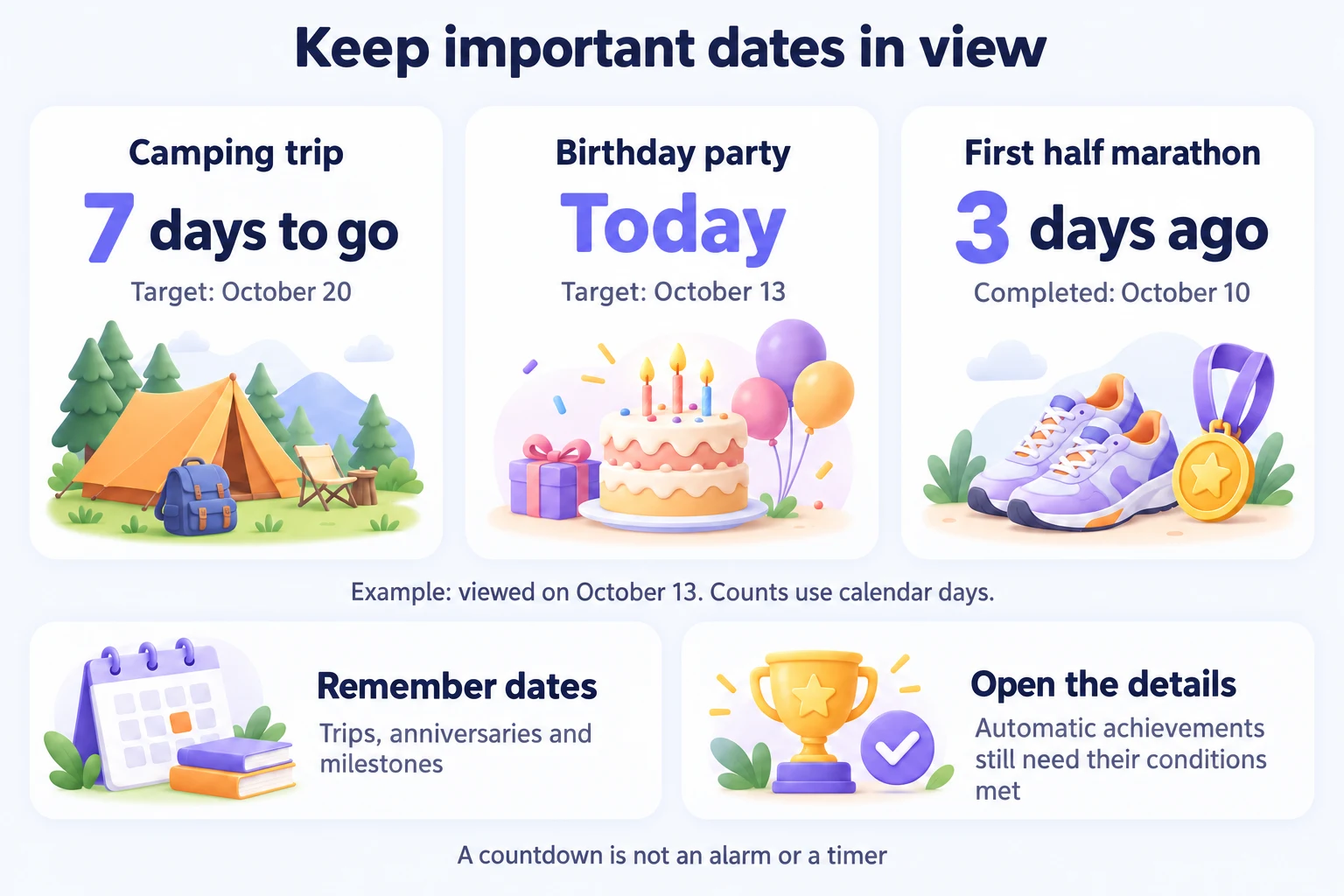
Add your trip date
- Create an achievement list called "Trip dates".
- Choose Countdown in Display mode and save.
- Add a manual achievement called "Trip departure", set its target date to October 20, and save.
- Open the list to see the days remaining.
Check the date before saving. A manual entry with a target day that has already arrived may unlock immediately, with that target day recorded as its completion date.
Keep the list in Countdown if you need its target dates. Saving an achievement in another display style does not retain its countdown target date. Check dates before changing styles and editing entries.
What happens when the trip date arrives?
On or after October 20, opening the list can mark the manual trip entry complete. If you leave the list closed, it may still appear unfinished. You do not need to long-press it just because its date has arrived.
Before completion, the row shows its target date. Completed rows show the completion date. The number changes between days remaining, today, and days elapsed, using the difference between calendar days.
For a manual "Trip departure" entry with a target of October 20 in the same year:
| When you open the list | Day count | What to expect |
|---|---|---|
| October 17 | 3 days remaining | The entry is still waiting for its target day |
| October 20 | Today | Opening the list can complete it and record October 20 as the completion date |
| October 22, after completion | 2 days since | The completed entry remains a record of the date |
The date marks a milestone; it does not check whether you actually traveled. If your plans change, edit the date rather than relying on the old countdown.
An automatic achievement still needs to meet its conditions; reaching a date alone does not complete it. Tap its row to view progress and Claim in details, since neither appears on the countdown face. Repeat automatic achievements are excluded from list progress, just as in other layouts.
Mark a date complete yourself
On iOS, long-press a manual row to complete it or undo completion. Tapping opens details. On Android and HarmonyOS, long-press opens the card menu rather than directly toggling completion.
For a manual entry with a target date, completing it may record that target day instead of the moment you tapped. For example, marking the October 20 trip complete early may still give it an October 20 completion date. Long-press does not manually complete an automatic entry.
What if the trip is postponed?
If you undo completion after the target day has passed, the entry stays incomplete. It will not automatically complete again for that same date. To allow date-based completion again, edit the target to a different calendar day, such as the new trip date. Changing only the time within the same day does not do this.
Common questions
Can I leave the target date blank?
Yes. The row displays a no-target message without a numerical countdown. You can set a date later, or complete the achievement to have a date filled in.
Will it complete at midnight while the app is closed?
Do not rely on it as a background alarm. Open the list once the target day has arrived to check the manual entry's completion.