Checklist Pill
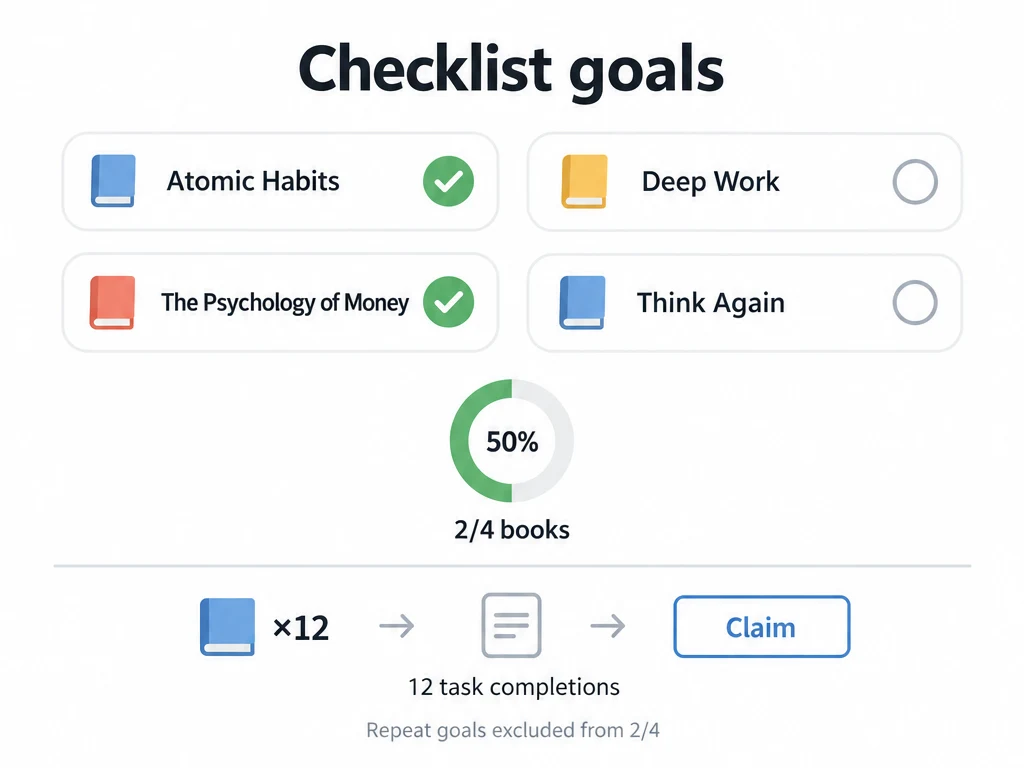
A reading wish list can get crowded when every book takes up a full card. Checklist Pill fits short titles into compact pills, so you can browse more of your list at once. Each finished book gets a checkmark.
The style applies to the whole list. You can keep manual entries for books alongside automatic milestones, as explained in the overview. Switching from Standard Card changes the layout without changing which achievements are unlocked.
Turn a note of book titles into a list
Saving a Checklist Pill list requires Premium, as does Countdown. Without Premium, choose Standard Card to save the list for free.
- Create an achievement list named "Reading wish list", or edit an existing one.
- Choose Checklist Pill in Display mode and save.
- Open the list and tap
+. In checklist create mode, paste the book titles as multiple names, then save them as achievements. You can also add titles one at a time.
Keep automatic tracking off for books you want to check off yourself. An icon is optional, so you can leave the pills as book titles alone.
Mark a book as read
On the iOS list, long-press an unfinished manual pill after you finish that book. A checkmark appears inside it, and it counts toward list progress. Tapping a pill normally opens its details instead; this is useful when you want to review the achievement before completing it.
If you also want a reward for regularly doing your reading task, add a separate automatic reading milestone. That goal can track 12 cumulative completions of the task while the manual pills record which books you finished.
For automatic pills, tap to open details and check progress or Claim a reward. Neither progress nor Claim appears on the pill itself, and long-press cannot complete an automatic achievement. See automatic achievements for the setup. Automatic goals with a Repeat cycle are excluded from list progress.
Give several books the same reward
Enter batch mode from the toolbar, select the relevant pills, and choose batch edit rewards. Select all is available when you want to apply the change to the whole list. This mode is also available in Standard Card and Countdown; it does not complete the selected achievements.
Batch mode also lets you delete entries. Every selected achievement is removed, even if it is already completed, and deletion cannot be undone. Check the count in the confirmation dialog. Deleting a single achievement from its menu is also permanent.
Common questions
Why does tapping a book not mark it as read?
Outside batch mode, tapping opens details. The quick-complete gesture described above is a long-press on an unfinished manual pill in the iOS layout.
Why does an automatic milestone still show old progress?
Open the list or the achievement details to check it again. Long-pressing will not unlock it; it needs to meet its conditions. See checking automatic progress.