Reflections (Thoughts)
After a morning run, you might want to remember that starting was hard but you felt more awake afterward. Write that in My Reflections. You can also record how a reward felt after you redeemed it, or keep a weekly review that covers several activities.
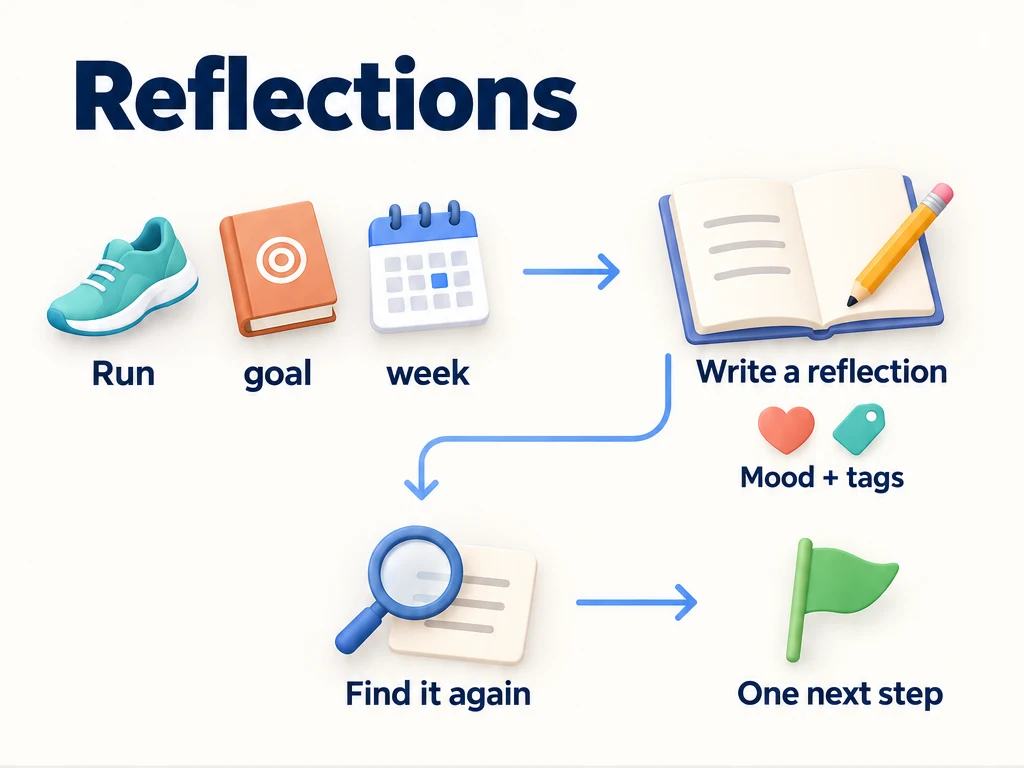
Write a note after a run
On a phone, open Status → My Reflections. On a larger screen with a sidebar, open My Reflections there. Check that you are in the profile where you want to keep the note.
- Tap + and write in Content: “Ran for 20 minutes before breakfast. Starting was easier than waiting until evening.”
- Choose the mood that fits the note. You can add a tag such as
healthto find it later. - Save. The note appears in My Reflections.
There is no empty-mood option. Even if you only type text, saving retains the editor’s selected mood. The reflection body has no separate title field; the activity marker described below has its own Title field.
When planning next week, the note gives you a specific routine to try again. Statistics shows how often you completed tasks and how much time you recorded; the reflection explains what helped on this occasion.
Write about a reward you redeemed
If the purchase is already in your history, start from that record rather than typing its description again.
- Open Status → Activity Timeline and find the purchase. Use the upper-right filter button to narrow the date or activity type.
- Long-press the activity record, then choose the reflection action (labeled “Recorded Thoughts” in the English interface). This is a menu on the timeline record, not on an existing reflection.
- The editor opens with an activity marker containing the record’s icon and summary. Write what the reward was like, choose a mood, and save.
- Find the saved note in My Reflections.
For example, after spending 80 coins on a “Movie night” reward, you might write: “I enjoyed having an evening set aside. Next time I’ll pick the film before dinner.” The price is an example, not a recommended reward rate. The same steps work for a completed run or another event in the timeline.
The automatically filled marker tells you what prompted the note. It does not create a navigable link back to that timeline record or attach the note to the task’s Related reflections. To keep notes with a task, use its completion prompt below.
Add or edit an activity marker
For a note you start in My Reflections, you can describe the activity yourself:
- In the editor, tap Add Activity Link above the body.
- Choose an icon and, if useful, a color. Enter a Title such as “Morning run · 20 minutes” or “Movie night reward.”
- Tap Done, then save the reflection.
Despite its name, Activity Link is a visible marker you write yourself, not a picker for existing tasks or history records. Tap an existing marker to edit its icon, color, or title.
| What you want to change | What to do and what it changes |
|---|---|
| Make an automatically filled summary easier to recognize | Tap the marker and edit its title. This changes the reflection’s label, not the original activity. |
| Remove a marker from a saved reflection | Open the note for editing in My Reflections, tap its marker, choose Remove Link, then save. |
| Move a task-linked note to another task | Editing or removing the marker does not change which task owns the note. The marker editor does not provide a task-reassignment control. |
Keep notes with the running task
Before your next run, open the task → Edit and turn on Record reflection on completion. You can also choose Auto-apply template to start with your own prompts; see Reflection Templates.
When the task’s completion flow opens the reflection editor, write your note and save. It appears in My Reflections and the task’s related reflections. Turning the completion prompt off later leaves existing notes in place.
To add a task-linked note later, open the task detail’s … menu → Record Reflection, write your note, and save. This manual action works without turning on the completion prompt. Creating a standalone note with the task name as its activity marker does not establish this task relationship.
Write a weekly review
A week may include running, reading, and work. Start one note in My Reflections without tying it to a single task. These example prompts give you something concrete to review:
| Prompt | Example answer |
|---|---|
| What helped me start? | Putting my running shoes by the door the night before. |
| Was the reward worth repeating? | Movie night felt restful; I want to keep it as an occasional reward. |
| What will I change next week? | Read for 15 minutes before opening social media. |
Add tags for themes you want to revisit. Search the list or filter by tags when you want to compare with earlier weeks. Save recurring questions as a template, so the next review starts with prompts rather than this week’s answers.
Add a note to an achievement
If an achievement marks a milestone you want to remember, open its detail → … → Record Reflection. Write what helped you reach it, choose a mood, and save. You do not need a task-style completion toggle. The note appears among the achievement’s related reflections and in My Reflections. Editing its activity marker does not reassign that achievement relationship.
Find the right profile before cleaning up
Reflections belong to the active profile. If you keep work and personal notes in separate profiles, switch through Profile Management before searching or deleting.
Use the checklist icon to select multiple notes for editing or deletion. Deleting a reflection also removes images no longer used by other reflections. It does not reverse task rewards or coins. To clear all reflections and tags in the active profile, use Settings → Delete Data; that is separate from deleting selected notes in My Reflections.
Common questions
Why didn’t an editor open when I completed a task?
Check Record reflection on completion in the task editor. Some completion paths do not open the reflection editor. Use task detail → … → Record Reflection to add a task-linked note afterward. Starting from the completion record in Activity Timeline also lets you write a note, but only fills an activity marker; it does not attach the note to the task.
Where is an old note?
Check the active profile, clear tag filters, and search the note’s text. Notes in another profile appear only after you switch to it.
Can I select a different history record in Activity Link?
No. The editor lets you change the visible marker, not select or reassign a history record. To start with another record’s summary, find that record in Activity Timeline and use its reflection action.
Related pages
- Statistics: reflection counts and mood distribution over time.
- Activity Timeline: find a purchase, completion, or other recorded event.
- Profile Management: separate sets of tasks, progress, and notes.