Connect items to other apps
A Music ticket can open a playlist when you use it. First create a usable item, then add the effect for your platform. If you are new to items, start with Items and inventory.
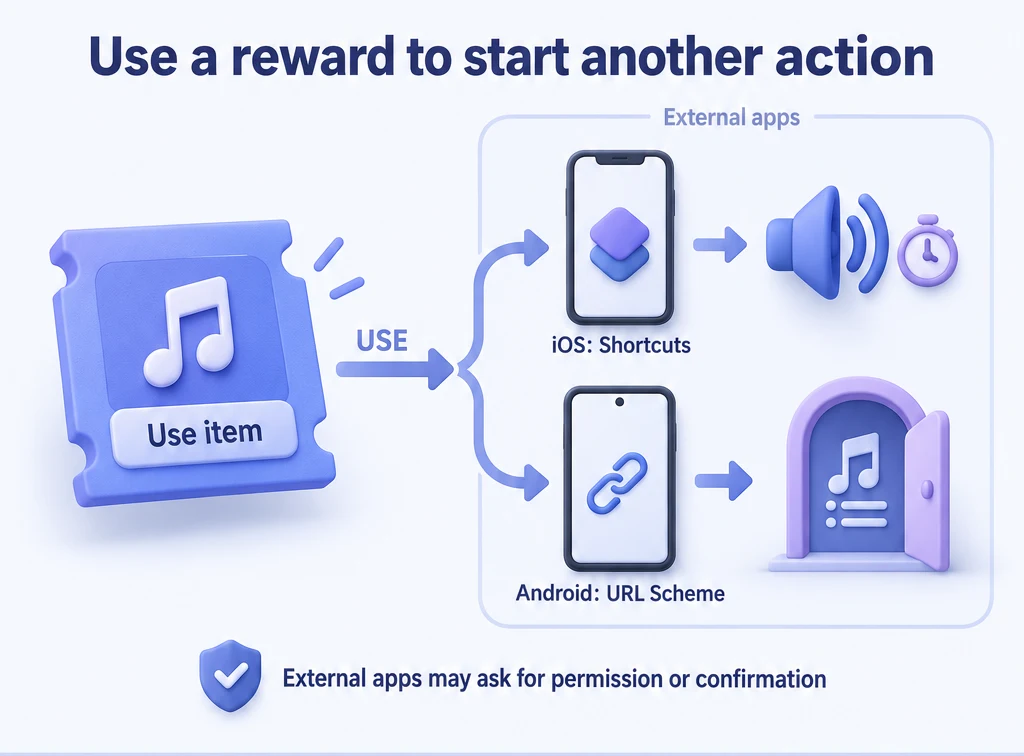
iOS: run a shortcut when you use an item
You can connect a Music ticket to a shortcut that plays a song. When you use the ticket, ulives calls the shortcut; the system and destination app handle the actions inside it.
- Create and test the shortcut in Apple's Shortcuts app. For example, name it "Relaxing music" and add an action to play a song or playlist.
- Edit your Music ticket in ulives and add Run Shortcut as a use effect.
- Enter the shortcut's name exactly as it appears in Shortcuts. Configuring this effect requires Premium; without it, you can view existing settings.
- Use the test button to check that it runs. Testing executes the shortcut's actions, so check recipients and content first if it sends messages.
- Save the item, then buy and use it from your inventory, or choose Buy and use immediately.
| Example item | Shortcut action | When you might use it |
|---|---|---|
| Music ticket | Play a song or playlist | Listen to a favorite song after studying. |
| Game pass | Open a chosen app | Redeem some game time. Opening the app does not enforce a time limit. |
| Break ticket | Start a timer or set an alarm | Take a 15-minute break and get a reminder when it ends. |
| Share card | Run a supported messaging action for a chosen contact | Tell a friend when you reach a goal. |
Sending through WeChat or another app depends on the actions that app's current version provides to Shortcuts. You may need to grant permissions, unlock your device, or confirm sending. Check that the action works in Shortcuts before connecting it to an item.
Android: open an app page with a URL scheme
A URL scheme is a special link that opens an app. Some links open its home screen; others point to a song, video, or another page. The destination app decides which links it supports.
- Edit an item and add URL Scheme as a use effect.
- Choose one of the common examples shown in the editor, or enter a link provided by the destination app.
- Save and use the item. ulives will try to open the link. The destination app must be installed and support it.
| Example item | Link destination | What you do next |
|---|---|---|
| Video ticket | A particular video in a video app | Watch from that page. The video app decides whether playback starts automatically. |
| Music ticket | A song or playlist in a music app | Play the music once it opens. |
| Game pass | An entry point supported by a game | Play for the amount of time you agreed with yourself. |
For a particular page, check the destination app's official link documentation. A normal share link is not necessarily a URL scheme. Do not assume an iOS link works on Android, or use unfamiliar links containing account information or sensitive parameters. Links may also need updating when the destination app changes.
Common questions
The external app did not open. Should I use another item?
If the external app fails to open, that does not mean item use was undone. Check the link or shortcut name, installation, and permissions before repeatedly using more items to retry. For shortcuts, check the actions in Shortcuts as well.