Profile Management
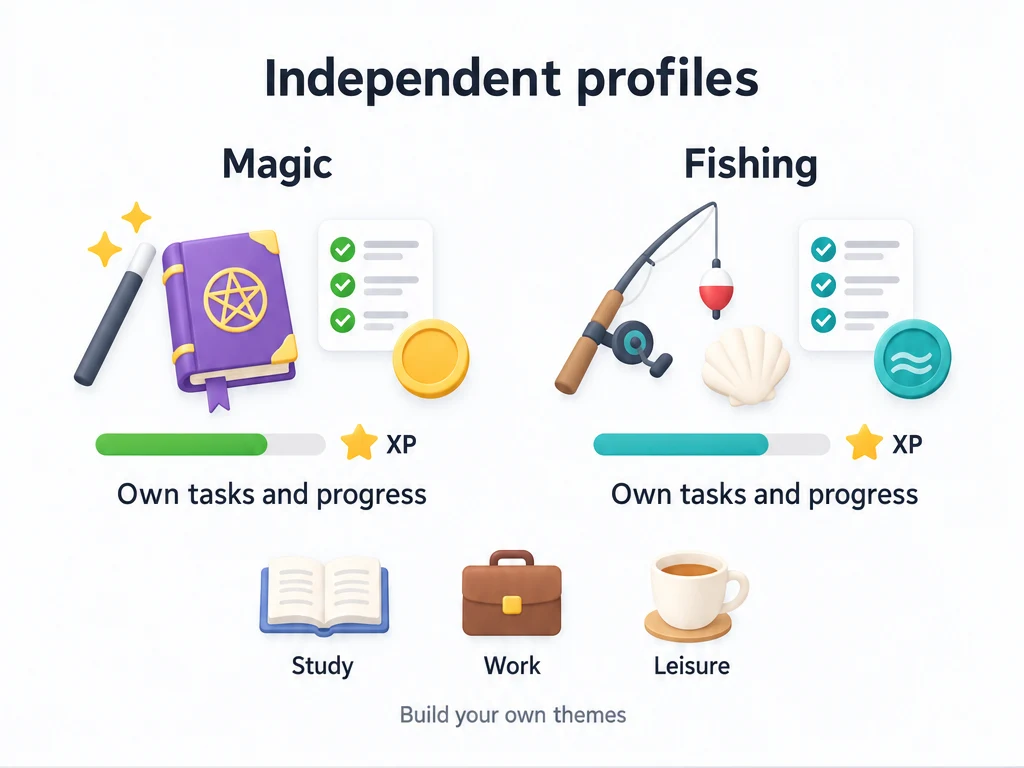
You could turn studying into a magic adventure, earning XP toward attributes you name “Spellcraft” or “Alchemy.” For leisure, you might prefer a fishing world with its own catches and rewards. Give each world a separate profile and set up its tasks, attributes, and items there. These are examples you can create, not built-in game modes.
Each profile’s data and progression are fully independent. Tasks, lists, achievements, inventory, currencies, attributes, reflections, Focus Tasks, and activity history belong to that profile. XP earned in the magic world does not raise levels in the fishing world, and their items and currency are not shared. Only one profile is active at a time; the others stay on the device until you switch to or delete them.
You can also use profiles to keep study, work, and leisure separate without giving them a game theme. If you want those activities to contribute to the same levels and rewards, keep them in one profile and organize the tasks into lists instead.
Create a separate personal profile
Open Settings → Profile Management, rather than the avatar or account screen. Creating or duplicating profiles requires Premium. Without Premium, you can still switch, rename, and delete existing profiles.
Tap + and enter a name such as “Personal.” Choose whether to switch to the profile after creation. Preload initial data gives it the full sample content; leaving that option off uses basic starter data. Confirm to create it.
Your personal tasks and currency now belong to a separate profile from work. A profile with sample content is also useful for trying features away from your daily tasks. Profiles do not share or combine progress.
Switch between work and personal tasks
In Profile Management, tap an inactive profile and confirm. The main tabs then show its data. Reminders and widgets follow their profile-related settings.
You cannot switch profiles while Focus is running or paused. Finish or stop Focus first. This also applies when you choose to activate a duplicate immediately.
If you want task reminders from your other profiles while using the current one, enable Global reminders across profiles in Profile Management.
To rename a profile, use Edit on its row. For example, you can rename an experiment after deciding how you want to use it.
Copy a profile to try different rewards
Suppose you want to test lower Shop prices without changing your usual profile. Choose Duplicate on that profile, then give the copy a distinct name.
Include history is off by default. Turn it on if you want the copy to include completion history, inventory quantities, XP, and activity records. Large profiles may take longer to copy. You can also choose Include task reminders and whether to activate the copy immediately. Confirm to create the duplicate; Premium is required, and active or paused Focus blocks immediate activation.
Once you switch to the copy, you can try your changes there. Copying gives you a starting snapshot, not a connection between profiles. From then on, the original and copy have fully independent progress; later edits are not merged back.
Delete an experiment you no longer need
Only inactive profiles can be deleted. If the experiment is active, switch to a profile you want to keep first. Read the deletion confirmation, including any name confirmation it requests. Deleting a profile permanently removes that profile’s data.
If you may need it again, export a backup before deleting. Keep in mind that restoring a backup replaces all profiles on the device, so it is not a way to restore just that experiment while keeping every newer change elsewhere.
Choose between switching, restoring, and clearing data
Switch profiles when you want to use another set of data already on the device. This does not export a file.
Use Backup & Restore before a reset or when moving devices. A data backup includes all profiles, with a separate option for media. Restoring replaces the app’s data after you fully quit and reopen it. iCloud backup is not real-time sync between devices. LifeUp import is different: it creates a new profile, which you then select in Profile Management.
Open Settings → Delete Data to clear a category in the active profile, such as inventory, attribute XP, task history, achievement progress, the activity timeline, or reflections and tags. Each action has its own confirmation; clearing task history keeps the current period. These options are also available without Premium.
If you have only one profile and want to start over without Premium, use Reset all data on that screen. It creates a profile with initial sample data, switches to it, and permanently deletes the previous active profile. Export a backup first: neither category cleanup nor a full reset can be undone in the app. Any other existing profiles are left intact. With Premium, create a new profile instead, keeping the old one until you decide to delete it.
Common questions
Why are old completions missing from a copy?
Include history defaults to off. Enable it when creating a copy that should retain progress and the timeline.
Does deleting one profile erase all my profiles?
No. Profile deletion targets one inactive profile. Delete Data clears categories in the active profile, while Backup & Restore replaces data across all profiles when you restore.
Related pages
- Backup & Restore: whole-app backups and LifeUp migration.
- Reflections (Thoughts), Statistics, and Activity Timeline: each uses the active profile’s data.
- FAQ: membership and LifeUp data compatibility.