Backup & Restore
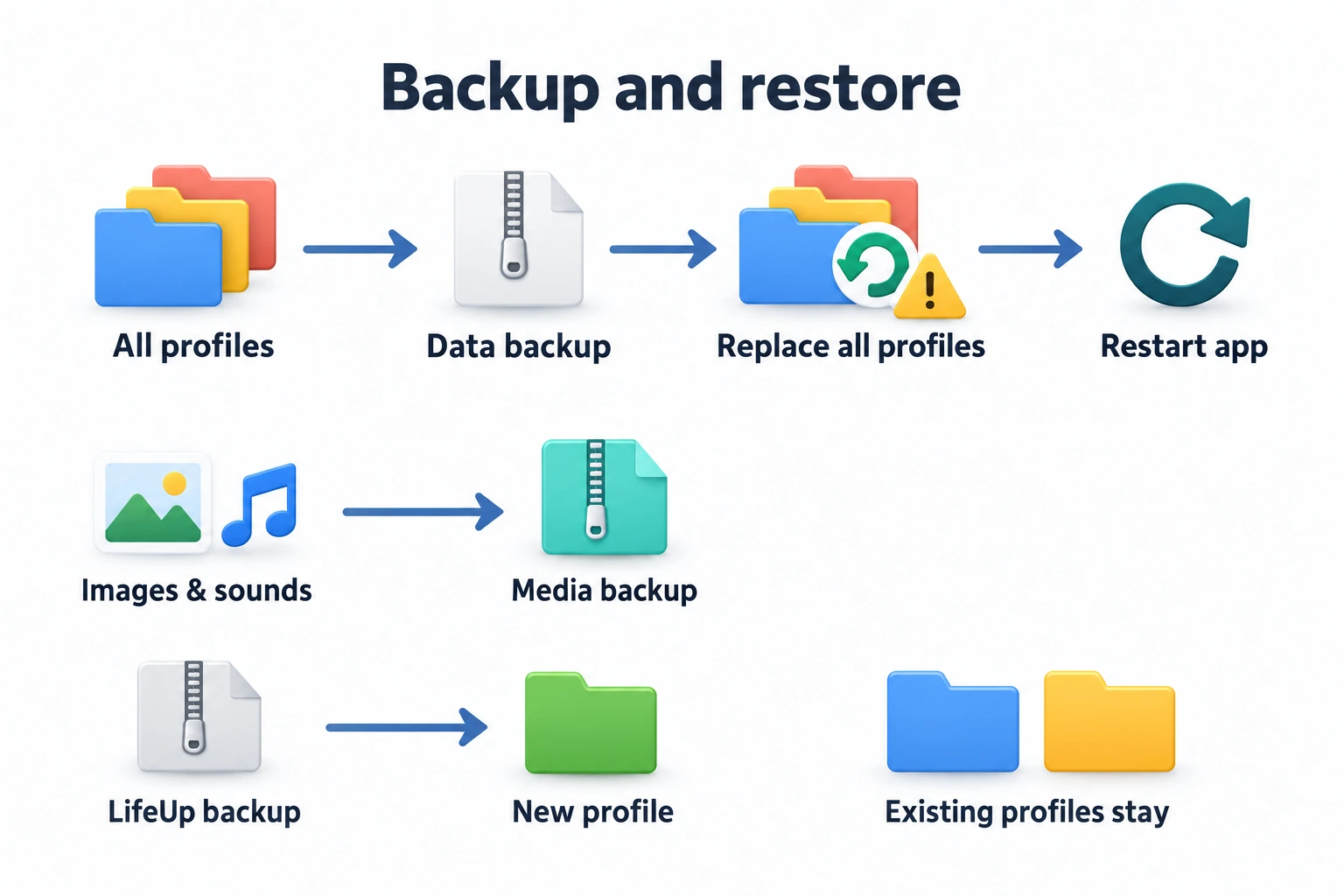
Before resetting your progress or trying an import, save a backup you can return to. A ulives data backup is a snapshot of all profiles on the device, including tasks, achievements, related app data, and the settings included in the backup. Custom images and sounds are backed up separately as media.
You can also use a backup to move to another device. Restoring replaces the destination’s data with the snapshot; it does not keep devices in sync or merge their latest changes. LifeUp import follows a different rule: it creates a new profile without replacing existing ulives profiles.
Save a local backup before a reset
Open Settings → Data Backup & Restore and expand Local backup.
- Choose Export data and save the backup zip through the system share or save dialog. The backup section’s footer lists the file extensions.
- If you use custom images or sounds, export media as well. The main data zip and media backup are separate.
- Keep the exported files somewhere you can access before proceeding with the reset or import.
Settings → Delete Data is a different screen. It clears selected categories in the active profile and does not create a backup.
Restore a local backup
Importing a ulives data backup replaces all profile data and related preferences on this device. It does not restore only the profile you happen to be using. Profiles absent from the backup will be lost unless you have another export containing them.
For example, a backup made before you created a fishing profile will not contain that world. Restoring it while your magic profile is active still removes the newer fishing profile. Export the current data first if you want to keep a way back.
In Local backup, choose Import data and select a valid ulives backup. Read the replacement confirmation and proceed only if this is the snapshot you want. After success, fully quit and reopen ulives before continuing to use it. Some app preferences may not be restored; check whether the success message reports that settings were skipped.
To restore custom images and sounds, use the separate media import. It asks you to confirm that it will overwrite the current custom images and audio on this device.
Keep iCloud backups on iOS
If you want backups available when replacing your iPhone, check iCloud status on the backup screen and enable iCloud backup. Choose how many backups to retain. Create data backup saves a manual snapshot when you want one before a particular change.
To restore, select a backup from the list and confirm replacement of all profile data. Fully quit and reopen the app afterward. You can delete old snapshots from the list when you no longer need them.
If iCloud is unavailable, use local export/import or follow iCloud troubleshooting. iCloud is an Apple-specific backup option. On other platforms, use the backup options offered in Settings → Data Backup & Restore; do not expect an iCloud entry there. Local export/import uses the device’s system file or share dialog, whose appearance differs by platform.
Back up custom images and sounds to iCloud
The Media backup section requires iCloud and has its own status and Back up media action. Use Restore media when you want to recover that media backup; confirm only if you want it to overwrite your current custom media.
Links from this screen to image or audio management and Delete Data change the data you currently use. They do not edit archived backup zips.
Bring a LifeUp backup into ulives
ulives makes a best-effort import of LifeUp backups from version 1.105.0 or later. For an older backup, upgrade its data structure in the latest LifeUp first, or contact fb@ulives.io. See FAQ for compatibility details.
Select the LifeUp export zip and wait for the import report. The import creates a new profile and leaves your existing ulives profiles intact. It does not automatically activate the new profile. If import fails, the partial profile is rolled back.
On success, review the counts and warnings, which may mention legacy attributes, missing media, or unsupported effects. LifeUp and ulives have different data structures, so the result may need adjustments. Check imported tasks and fix unsupported recurrence or effects manually in ulives.
When ready, choose Switch to Imported Profile or switch through Profile Management. Finish or stop any running or paused Focus session first, because it blocks switching.
Decide whether you need a reset or a restore
| What you want to do | Scope and consequence |
|---|---|
| Clear one category through Delete Data | Deletes the selected data only in the active profile. For task history, the current period is retained. |
| Use Settings → Delete Data → Reset all data without Premium | Creates a profile with initial sample data, switches to it, and permanently deletes the previous active profile. Other profiles are left intact. |
| Start over with Premium | The interface directs you to create a new profile instead of using Reset all data. |
| Restore a ulives data backup | Replaces data across all profiles on the device with the backup contents on the next launch. |
Export a backup before clearing or resetting data; these actions cannot be undone in the app. Category cleanup is available without Premium too. If you only want to clear old task history, use Settings → Delete Data → task history and read what the option retains. Restoring an old backup would also replace your other profiles and their newer changes.
A backup records progress as it was saved; it does not generate extra XP or provide a selective undo for individual rewards. Deleting a timeline row also has its own limits, explained in Activity Timeline.
Common questions
Why did nothing change immediately after restoring?
The replacement takes effect after you fully quit and reopen ulives. Until then, you may still see the data from before the restore.
Why is another profile missing after a restore?
The app uses the profiles contained in that backup. A profile not included there can only be recovered if you have another backup containing it.
Did LifeUp import replace my main profile?
LifeUp import creates a separate profile. Check which profile is active before editing or deleting anything. A ulives data restore, by contrast, replaces all profiles on the device.
Related pages
- Profile Management: switch to imported or copied profiles.
- FAQ: LifeUp version requirements, membership, and data compatibility.
- iCloud troubleshooting: resolve unavailable iCloud backups.