Activity Timeline
You finished a run, received a reward, and later spent coins on a movie night. Activity Timeline keeps these events in one history for the active profile. It includes task completions and revokes, rewards and penalties, purchases, item use, Focus sessions, and level-ups.
Use it when you want to find what happened before a balance or level changed, or write a reflection about a particular event. For totals across a week, use Statistics.
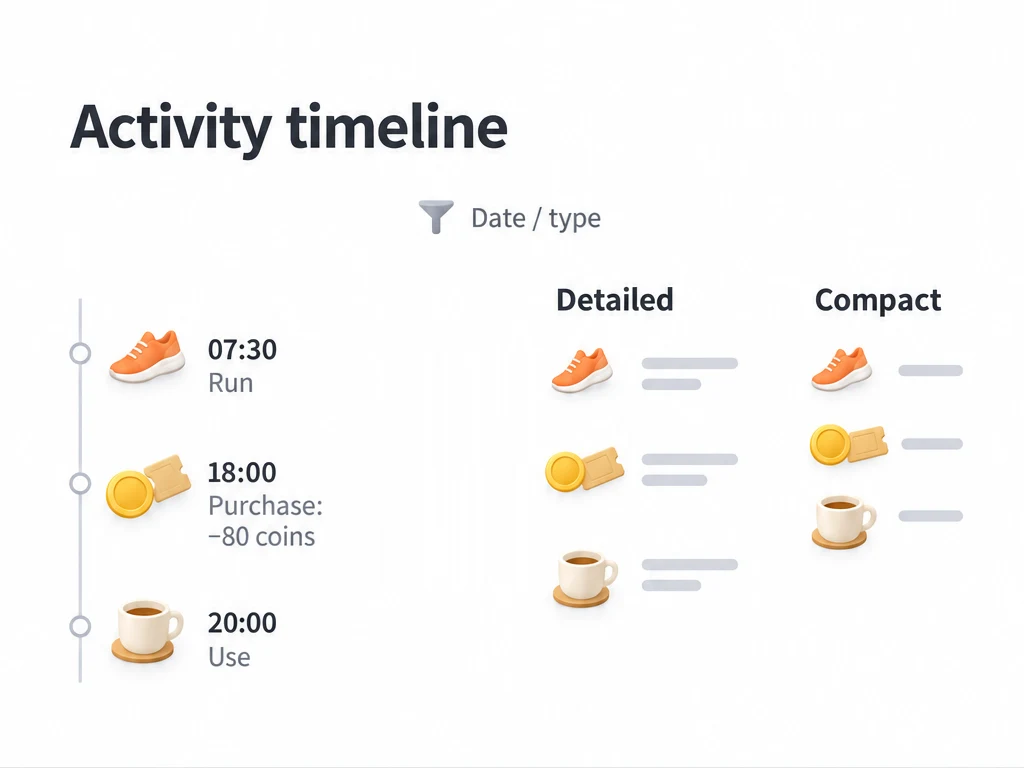
Find what happened on Wednesday
On a phone, open Status → Activity Timeline. On a larger screen with a sidebar, open Activity Timeline there. Start in the profile where the activities happened.
- Tap the filter button in the upper-right corner and choose a date range covering Wednesday. When the heatmap is shown, you can also select that day.
- Browse the day’s events together before narrowing them. A task completion and a later reward purchase answer different parts of the story.
- Select an activity type to reduce the list. Depending on the selected type, you can also filter by a specific task, item, attribute, or Focus Task.
- Read the matching records. The active filter bar lets you change or clear conditions when you want the broader history again.
Here is an example day to trace. Names, times, and reward amounts are illustrative:
| Time | What you did | What to look for |
|---|---|---|
| 07:30 | Completed “Morning run” with a configured 10-coin reward | The completion and its reward details. |
| 18:00 | Bought one “Movie night” reward for 80 coins | The purchase, including what you spent and received. |
| 20:00 | Used that reward from the inventory | The use record, separate from the earlier purchase. |
Filter for the purchase when checking what the movie night cost. Clear that filter to see the run and other events again. Buying a reward and using it are separate actions; a purchase record alone does not mean you used the item.
Read the day like a short journal
The upper-right layout button switches between detailed cards and a compact timeline. Compact rows group records by activity day and show the time, activity icon, a short summary, and related item or attribute icons where available. Tap a compact row to see its details.
Premium members can browse the full compact history. Without Premium, you can still switch to compact layout to preview the most recent activity day in the filtered results; a membership prompt appears below it. The detailed layout remains available for browsing the history. A one-day compact preview does not mean older records were deleted.
For example, use detailed cards when checking the 80-coin purchase, then switch to compact layout to scan the sequence of the day’s activities. Switching layout changes the presentation, not the records.
Rows use type labels and icons to distinguish events. A task completion, its revoke, a subtask action, and a penalty can appear as different types. Achievements, Shop and inventory actions, Focus records (including stopwatch claims), growth, and system events also have their own types.
Write a reflection from an activity record
After watching the film, you might want to record whether the reward felt worth saving for. Find the purchase or use record first.
- Long-press that activity record in either layout.
- Choose the reflection action (labeled “Recorded Thoughts” in the English interface).
- The editor starts with a marker showing the activity icon and summary. Write your experience, choose a mood, and save.
- Open My Reflections to read the note later.
You can do the same for a completed run: “Twenty minutes was enough today; I’ll keep the same route next time.” Long-pressing a note in My Reflections instead opens actions for that existing note.
The activity summary is copied into a visible marker. This does not establish a link back to the history row or place the note in a task’s related reflections. You can edit the marker’s wording; see Reflections for editing and removal rules.
What happens if you delete a record?
Suppose you find a completion record you no longer want in the history. Long-press the record and choose Delete. Read the confirmation before proceeding:
- Deleting the record affects statistics and achievement progress that depend on it.
- It does not remove items you received or refund penalties already applied.
- If you want to reverse rewards or penalties, use the related task or achievement actions. Deleting the timeline row alone will not do that.
Check the active profile before deleting. You can switch through Profile Management. To clear the entire timeline for the current profile, use Settings → Delete Data → activity history. This is separate from deleting one row and removes the history used by related statistics and achievement calculations.
When to use the timeline
Use Activity Timeline when a total leaves you with a question about a particular event. Statistics summarizes your progress, while task lists are where you plan and complete current work. For example, check Statistics for a week’s task count, then filter the timeline to inspect an unexpected day. Task totals also depend on completed task periods and the selected counting mode; reflection statistics come from your saved notes. See Statistics if the numbers do not line up.
Common questions
Why can’t I find a completion?
Clear filters and widen the date range. The action may be under a related event type. Focus breaks have different recording rules from completed work timers.
Why is the timeline empty after a restore or copy?
A restore applies after you fully quit and reopen the app. The restored backup must contain the records you expect. A profile copied without Include history may also lack those older records. See Backup & Restore and the copy options in Profile Management.
Related pages
- Statistics: totals and trends from the history.
- Reflections (Thoughts): notes you write, optionally linked to tasks.
- Profile Management: separate history for each profile.