Reflection Templates
After reading, you may want to answer the same two questions each time: “What stayed with me?” and “Where could I use it?” Save those prompts as a reflection template so you can spend your time answering them instead of typing them again.
Templates belong to the active profile. Start in the profile where you want to use them; see Profile Management if you keep study and work separate.
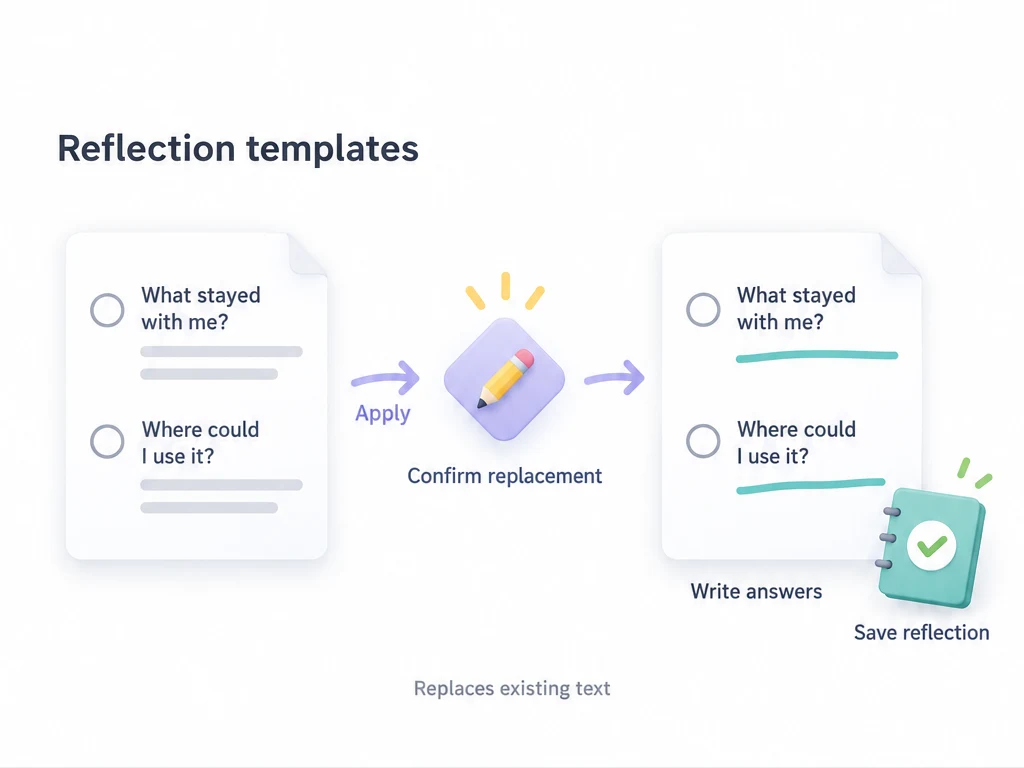
Save prompts for your next reading session
-
Open My Reflections from Status on a phone, or from the sidebar on a larger screen, and tap +.
-
In Content, write the prompts you want to reuse. For example:
What stayed with me?

Where could I use it? -
Open the … menu beside Content and choose Save as Template….
-
Name it “Reading notes.” Leave Mood off if you want to choose a mood afresh each time. If you have selected tags, you can include them with the Tags option. Both options start off.
-
Save the template. It becomes available in the editor’s template shortcuts and picker.
Saving a template does not save the current draft as a reflection. To keep today’s answers too, fill them in and use the reflection editor’s Save action.
Use it without losing what you have written
Next time, create a reflection and tap “Reading notes” in the template shortcuts. You can also open … → Apply Template and search by template name or content.
The prompts fill the body of the draft. Write your answers, choose a mood, and save the reflection. The template remains available for another session.
Applying a template replaces the current body; it does not append to it. If you already typed something, the editor asks before replacing it. Cancel if you need to save or copy those words first.
A template that includes a mood or tags replaces those selections too. Leaving Mood or Tags off when saving the template means applying it leaves that part of the draft unchanged. It does not clear the reflection’s mood. Images and task or achievement links are not included in the template.
Choose prompts for the situation
Write the questions yourself; these are examples, not built-in templates. Save prompts without today’s answers so the next reflection starts cleanly.
| Template you could create | Body prompts | How to use it |
|---|---|---|
| After a run | How did the first five minutes feel? What will I keep or change next time? | Auto-apply it when the running task’s completion opens a reflection. |
| Reward review | What did I redeem? Was it worth the cost? Would I choose it again? | Start a reflection from the purchase or use record, then apply this template before writing. |
For the reward example, a finished answer could be: “Movie night, 80 coins. Having an evening set aside felt worth it. Next time I’ll pick the film earlier.” Keep the questions in the template and that answer in the saved reflection. Applying a template leaves the activity marker already in the editor in place.
If every reading note should have the reading tag, select it before saving the template and enable Tags. Leave Mood off to choose a mood for each session. That means the template does not replace the editor’s mood; it does not create an empty mood.
General weekly review
Set aside a few minutes at the end of the week to review your records and Statistics, then create a standalone reflection. Copy the following text into Content and save it as a template named “Weekly review.” The week label belongs in the body; the reflection editor has no separate title field.
These examples are templates you create yourself. Dates, blanks, and questions stay as written when applied; fill in the dates, figures, and answers yourself. The template does not fetch statistics or turn placeholders into automatic variables. Save the unanswered version as your template, then answer the questions in each week's reflection.
Weekly review
Week: ____ to ____

1. What did I intend to do?
What mattered most this week? Which plans were realistic?
My priorities:

2. What moved forward?
Name the things I finished or made progress on, including small steps.
What record or result shows that progress?
My progress:

3. What remained unfinished?
What got in the way: time, energy, an unclear next step, or a changed priority?
Which task will I continue, make smaller, postpone, or drop?
My decision:

4. How did the week feel?
When was I focused or at ease? When did I feel drained?
What helped me start, and what repeatedly interrupted me?
My observations:

5. How did my rewards work?
What reward did I enjoy? Did its cost and timing suit the effort?
What would I keep or adjust?
My reward review:

6. What will I try next week?
Choose one or two manageable actions. When and where will I start?
What is the smallest version I can do on a difficult day?
My next steps:
Study weekly report
Use this version when completing tasks does not tell you enough about what you learned. Include an explanation, an exercise, or a piece of work you can revisit next week. Save it as a separate template named “Study weekly report.”
Study weekly report
Week: ____ to ____
Subject or course: ____

1. This week's learning goal
What did I want to understand or be able to do?
My goal:

2. Study I actually did
Which chapters, lessons, practice sessions, or assignments did I work on?
If I tracked study time, what was it? Enter the figure myself.
My record:

3. What I can now explain or do
Describe a concept in my own words or give an example I can solve.
What evidence shows I learned it?
My learning:

4. Where I am still stuck
Which question, mistake, or type of exercise keeps coming up?
Do I need more practice, another explanation, or help from someone?
My difficulty and next step:

5. My study routine
Which time, place, or session length helped me concentrate?
Was my workload manageable? Did the reward help me return to studying?
What I will keep or change:

6. Next week's plan
What will I review, and what new topic will I tackle?
Name a specific first session and a smaller fallback plan.
My plan:
Work weekly report
For a project, record the result and the next decision as well as the tasks you checked off. The template below can be a personal work log; adapt or remove sensitive details before sharing a report elsewhere.
Work weekly report
Week: ____ to ____
Project or area: ____

1. Intended outcome
What result was I aiming for this week?
My target:

2. Results and progress
What did I deliver, resolve, or move forward?
How does that compare with the target?
My results:

3. Open work and blockers
What is unfinished? What decision, information, or support do I need?
Which part can I move forward myself?
My next action:

4. Time and workload
What took longer than expected? What interrupted focused work?
What will I stop, simplify, or protect time for?
My adjustment:

5. Something worth keeping
What approach, feedback, or small success helped this week?
How will I use it again?
My takeaway:

6. Next week's commitments
Which outcomes take priority? What is the first concrete action?
Who do I need to contact, and when will I check progress?
My plan:
Start a task reflection with these prompts
After saving “Reading notes,” edit your reading task and turn on Record reflection on completion. Choose Auto-apply template, select “Reading notes,” then save the task.
When that task’s completion flow opens a new reflection, it starts with the template. Add your answers and save. Some completion paths do not open the editor; you can still add a reflection manually and apply the template there. See Reflections.
Rename or remove a template
Open … → Manage Templates in the reflection editor. Search for the template, then use its row actions to rename or delete it. Use Sort to change the order of your templates.
Deleting a template cannot be undone. It removes the reusable template, not the reflections you already saved with it. If a task used that template, choose another template in the task editor when you want to use automatic prompts again.
Common questions
Why is my template missing after switching profiles?
Templates are stored separately for each profile. Switch back to the profile where you created it, or create a template in the current profile.
Why can’t I include tags?
Select tags in the reflection editor first. The Tags option is unavailable when the draft has no selected tags.
Did changing my answers change the template?
No. Applying a template copies its content into the draft. Your answers belong to that reflection. To reuse a revised set of prompts, save it as a new template; remove the older one only when you no longer need it.
Related pages
- Reflections: write, find, and organize your notes.
- Statistics: review reflection counts and mood distribution.
- Profile Management: keep separate sets of notes and templates.