Items and inventory
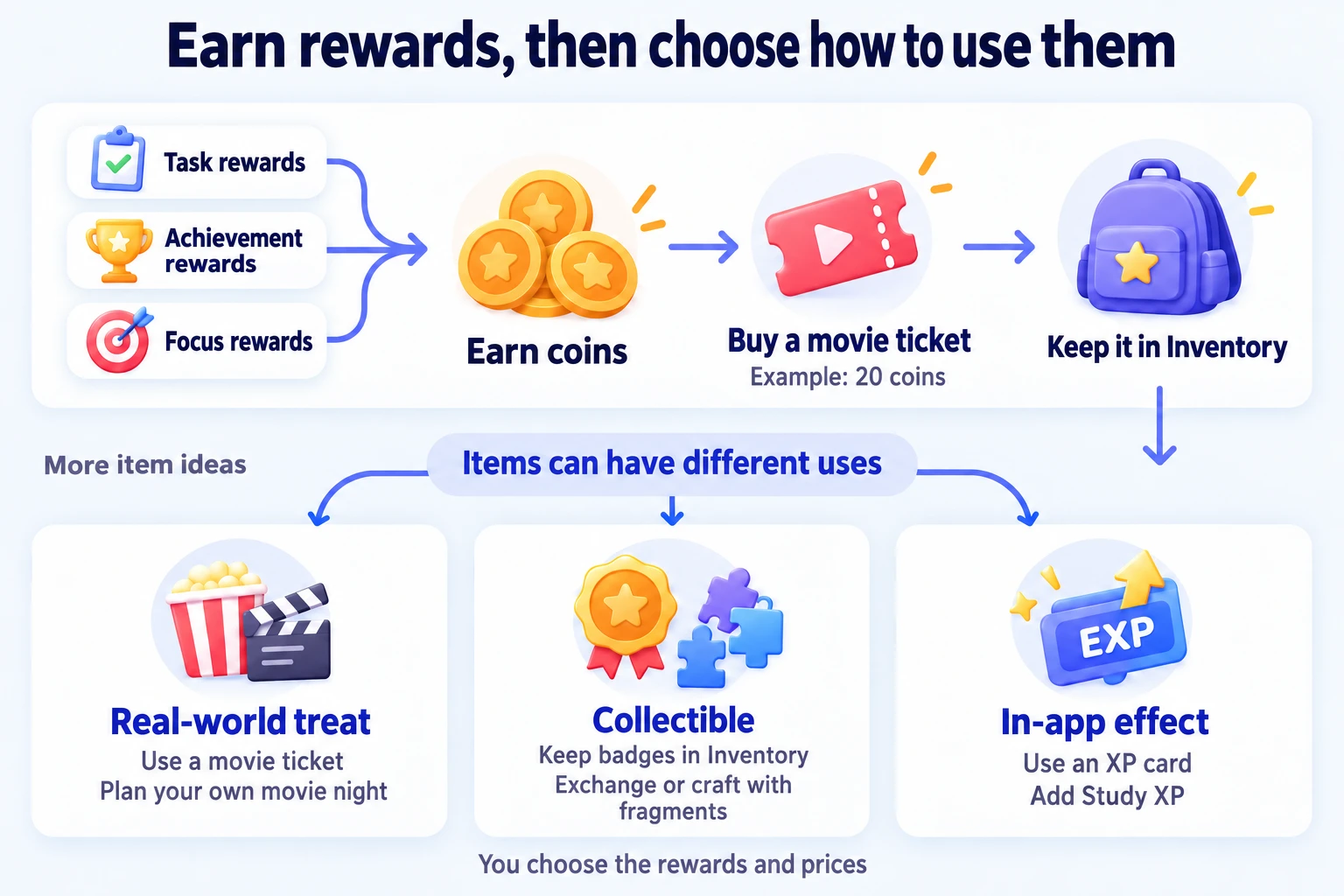
Earn coins by completing tasks, save up for a “Movie ticket”, then use it when you watch the film. Shop lets you put a price on rewards; Inventory holds the items you have earned or bought.
You can also collect badges, exchange materials for keepsakes, or give items effects such as granting XP. Currency is made of custom items too; see Currencies to edit them or choose which balance to display.
Make your first Movie ticket
- Add coins to a task’s rewards. For example, award 1 coin each time you finish reading. Achievements and Focus Tasks can also grant item rewards.
- Add a Movie ticket in Shop, choose an icon, enable purchasing, and set its price to 20 coins.
- Allow the item to be used. If it only represents a real-world treat, leave additional use effects empty.
- Once you have 20 coins, buy a ticket. It goes into Inventory.
- When you watch the film, use one ticket from Inventory to record that you took the reward.
The price is an example. If you earn about 20 coins a week and want one movie night a week, try that price and adjust it as your earnings change. Basic needs such as eating and sleeping do not need to be rewards you must earn.
ulives does not buy cinema tickets or arrange time off for you. You provide the real-world reward yourself.
What can you keep in Inventory?
| Reward you want | How to set it up | What to do with it |
|---|---|---|
| A film or half an hour of gaming | Make a usable ticket with no additional effect. | Buy it now and use one when you take the reward. |
| A keepsake for reaching a goal | Make a Reading badge and add it to an achievement’s rewards. Turn off Usable if you only want to collect it. | Keep it in Inventory without consuming it. |
| A collectible you build gradually | Award Badge fragments and exchange a set number for a complete badge. | Collect materials, then exchange or craft using the acquisition method you configured. |
| XP you can save for later | Make a Study XP card with an effect that increases Study XP. | Use it to grant XP to that attribute. |
These are examples of custom items, not required categories. If you only want real-world treats, one or two tickets are enough to start.
Give an item a use effect
Add effects in the item editor when you want using an item to do more than consume it.
| Example | Setup | Result when used |
|---|---|---|
| Study XP card | Increase an attribute’s XP, such as Study +10. | Adds that amount of Study XP. |
| Supply pack | Increase another item’s quantity, such as Coins +5. | Adds those items to Inventory. |
| Mystery box | Add an Open Box effect and set rewards and probabilities. | Draws rewards using those probabilities; a probability is not a guaranteed payout after a set number of tries. |
| Movie ticket with a review | Add a Record Reflection effect, optionally with a template. | Lets you write about the experience when you use it. |
To connect an item to another app, see iOS shortcuts or Android URL schemes.
Exchange materials for a collectible
You could award one fragment for each reading task and exchange five fragments for a badge. The resources needed to obtain an item do not have to be coins: they can be other items you created.
Set fragments as the badge’s purchase cost. If you want more ways to obtain it, add crafting recipes. Editing recipes requires Premium; without it, you can view recipes but not edit them. The item’s details show its available purchase or crafting methods.
Buying and using are separate actions
Buying deducts the required price items and adds the purchase to Inventory. You can keep it for later. Items that support immediate use also offer Buy and Use Immediately.
Read the confirmation before using an item, especially one with effects. Purchases and uses cannot be undone in one step. Discard removes items without running their effects.
Check an item's statistics
Open an item in Shop or Inventory and tap the chart button beside its name in the detail sheet. On iOS and Android, this opens statistics for that item, including currency items.
After you have earned or spent it, you can check effective gains, purchases, uses, and consumption, along with daily charts and breakdowns of where it came from and how it was spent. Sections appear when there are relevant records. For example, check Coins to see what funds your rewards, or a Movie ticket to see how often you buy and use it. Open the item's activity timeline from statistics to inspect individual records.
Common questions
| Question | Answer |
|---|---|
| Why can’t I buy an item? | Check that shop purchasing is enabled and you have enough of the required price items. A collectible earned only through tasks or achievements does not need to be purchasable. |
| Why didn’t buying it trigger an effect? | A regular purchase only adds it to Inventory; you still need to use it. If Buy and Use Immediately did not complete the use, check Inventory and the item’s effects before buying again. |
| How do I change the currency shown on Status? | Choose a primary currency in Shop settings. This changes the balance displayed, without converting your items. |
| Why is my balance negative? | Revoking rewards or applying task abandonment penalties can reduce item quantities below zero. |
| Does clearing Inventory delete my item settings? | The Inventory option under Settings → Delete data clears stock in the current profile but keeps item definitions. Make a backup first; you can restore from a backup if needed. |