Create and manage tasks
“Book a checkup” needs one completion. “Walk 20 minutes” might become a daily habit. You can start either task with just a title and a regular list, then add a schedule or rewards later.
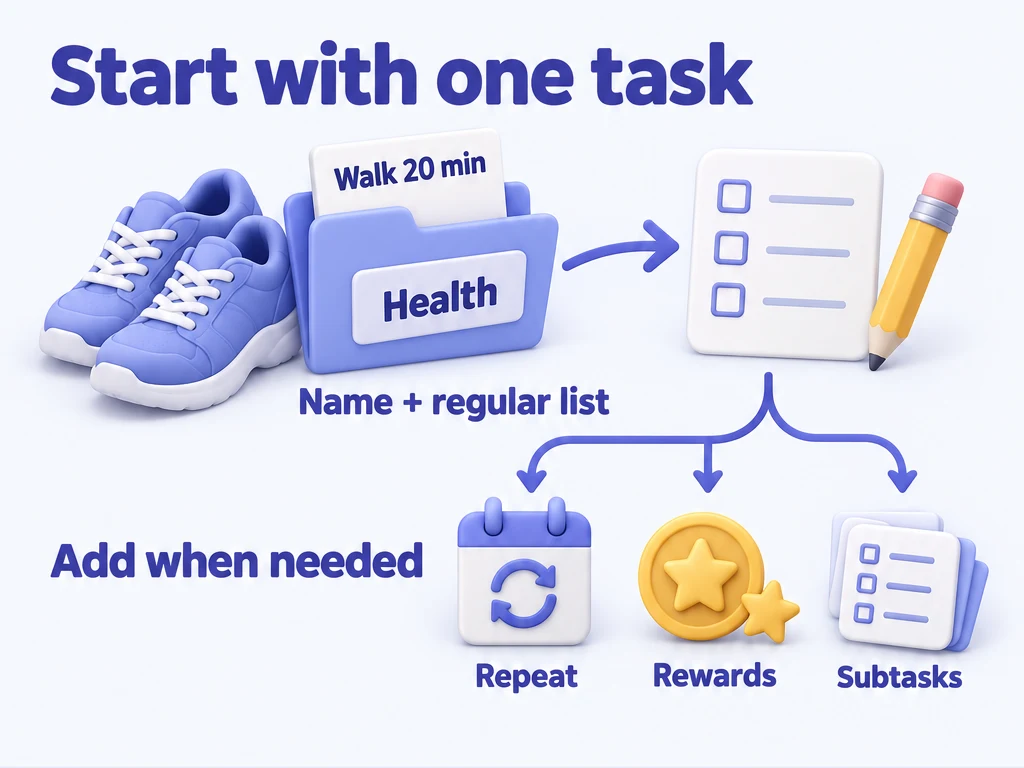
Start with something you need to do
| Task | A suitable setup | What happens when you complete it |
|---|---|---|
| Book a checkup | No repeat, on Health | The task is completed without creating another period. |
| Walk 20 minutes | Daily repeat, on Health | You record that day's walk; the next period follows your repeat settings. |
| Clean the bathroom | Weekly repeat, on Chores | You can track each week's cleaning separately. |
Each task belongs to exactly one regular list. Smart lists and My Day show tasks from those lists. See Lists and groups if you have not set up a list yet.
Make sure the profile you want to use is active and has a regular list. If you deleted every regular list, create one first.
Create “Walk 20 minutes”
- Open the Health regular list and tap + to create a task. Health is usually selected for you.
- Enter “Walk 20 minutes” as the title.
- Check the list field. If you started from a smart list or My Day, choose Health as the regular list.
- Tap Save.
The task appears on Health. With no repeat configured, it is ready to use as a one-off task. If you create it from My Day, you can also add it to My Day in the same sheet; its regular list remains Health.
Turn it into a habit when you are ready
Open the task with Edit, then open Edit recurrence and reminders to set a daily repeat. Repeat and advance explains how to handle days you miss. Matching smart lists also show the task; for example, Due Today Only includes it when the current period is unfinished and due today.
To reward each walk, add attribute experience or items in the reward settings. You can leave rewards empty; completing the task then grants no experience or items. See Rewards, penalties, and pending confirmation for how these settings work.
If you want to note how the walk felt, enable Record reflection on completion. A successful completion will prompt you for a reflection. For a task with several steps, add subtasks. You can also set up automatic achievements to track completion milestones.
Check the start date before saving an Auto task. A start date in the past can cause Save to create missed periods and immediately apply the selected Default status for missed cycles, including rewards or penalties. Saving normally leaves the current in-progress period unsettled; you complete, skip, abandon, or confirm that period separately.
Move or change an existing task
Use Edit to change a task's title, regular list, subtasks, recurrence, rewards, tags, or reflection setting. For example, move “Book a checkup” from Chores to Health by changing its regular list. Its history stays with the task, and smart lists continue to show it when their rules match.
After a substantial recurrence change, open task detail and check which period is current before completing, skipping, or abandoning it.
For one-off errands, keep no repeat. Completing the current period can mark the whole task completed; there is no next period to work through.
Look back at a habit
After recording a few walks, open the repeating task's details and expand Task Statistics. You can compare completed historical periods with the total and see the completion rate, plus skipped or abandoned periods when there are any.
The streak card shows your current run of completed periods and your best record. The history grid shows each period's status, so you can spot gaps in a daily habit or review a weekly routine. These counts are periods, not necessarily days.
This section appears for repeating tasks, not one-off errands. It covers periods before the current one, so the current period is not included even if you have just completed it. With no earlier periods, there is no statistics data yet.
Common questions
Why is Save disabled?
Check that the title is not empty and a regular list is selected. Save is also unavailable while a save is already running.
I created a task in a smart list. Where did it go?
Look on the regular list you selected when creating it. It appears in a smart list only when it matches the rules. My Day uses tasks you add manually, so check that you added it there too.