Rewards, penalties, and pending confirmation
You might give yourself some Health experience and a few coins for a walk. ulives can grant those rewards when you complete the task, and apply a penalty if you abandon it. The amounts and consequences depend on your task and profile settings.
Give a walk a small reward
Edit “Walk 20 minutes” and open Rewards. Add experience for the attribute you want to develop, then add an item or currency reward if you want one. For example, you could choose 10 Health experience and 2 coins. These amounts are suggestions, not an official reward scale.
Save the task, then complete it after your walk. A normal completion grants the configured experience and items. You can leave rewards empty if you only want a record of the walk. If you use a reward template, it replaces the current reward selections, so check them before saving.
You can also enable Record reflection on completion to write about the walk after completing it. For the task editor, see Create and manage tasks.
What completing, skipping, and abandoning do
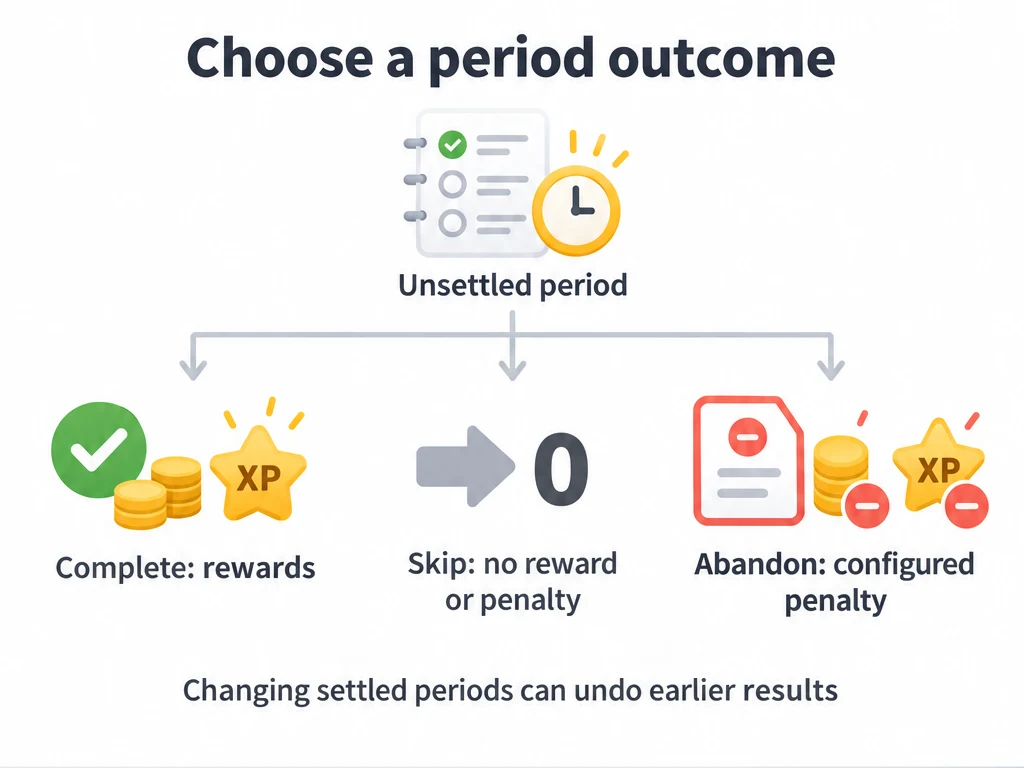
| Action | Effect on a normal period |
|---|---|
| Complete | Grants the configured experience and items once for that period. If it was previously abandoned, completing may first revoke the penalty. |
| Skip an in-progress period | Usually grants no reward and applies no penalty. |
| Skip a completed or abandoned period | May revoke the rewards or penalties already applied. |
| Abandon the current period | Applies a penalty calculated from the task rewards and profile penalty settings. |
For example, if you want abandoning a planned walk to cost you experience or items, check the penalty factors under Settings → Tasks before using Abandon. The task's reward amounts and those factors determine the penalty. Auto's Abandon (auto penalty) strategy uses the same calculation for missed periods.
Decide how missed days should be handled
If you did the walk but forgot to record it, Pending confirmation gives you a chance to say so later. It is the default strategy for missed periods on Auto tasks and applies no reward or penalty while you decide. Repeat and advance explains when these periods are created. You can also choose automatic rewards, penalties, or skipping.
In the tasks area, review the pending periods and choose Complete, Skip, or Abandon according to what happened. Complete follows the usual reward and subtask rules; Skip from a fresh pending state usually applies neither reward nor penalty; Abandon applies the penalty. If tasks change after a batch preview, the app may ask you to confirm again.
Examples of automatic rewards and penalties
In recurrence settings, choose Auto → Default status for missed cycles.
| What you want | Strategy | What happens when a missed period is created |
|---|---|---|
| Review walks you forgot to record | Pending confirmation | The period waits. You decide whether you walked before any reward or penalty is applied. |
| Treat an unrecorded daily practice as a missed commitment | Abandon (auto penalty) | The period is abandoned and the configured penalty is applied, even if you did the practice but forgot to record it. |
| Use a personal rule that a day without an impulse purchase counts as success unless you record otherwise | Complete (auto reward) | The period is completed and rewards are granted automatically. ulives cannot check what you bought; use this only if this default matches how you want to keep records. |
| Let missed optional stretching sessions pass without review | Skip (no confirmation) | The period is skipped with no reward or penalty. |
Check past start dates before saving. Creating or editing an Auto task with a start date in the past can create missed periods and immediately reward or penalize them according to this setting. Saving does not normally settle the current in-progress period by itself.
Why did completion ask for confirmation?
A task using the Warn before completing subtask rule asks before completing while steps remain unfinished. Require all subtasks blocks completion until every step is done. These rules also apply to pending-confirmation periods. See Subtasks. Other rule conflicts or blocked undo operations can also prevent an action; if it is rejected, do not assume the period changed.
Count tasks can finish below their target
On a count-based task, tapping Complete manually can close the period even if the counter has not reached its target. Rewards may be proportional rather than the full configured amount. If you want to record a missed target, check whether Abandon or Skip better represents it and consider the penalty before choosing.
Penalty factors belong to the profile's task settings; check the profile you are using before relying on a particular penalty.
Common questions
Why did my experience change after Save?
Check whether an Auto task has a past start date and uses automatic rewards or penalties for missed periods. Saving can fill in those periods even though it does not complete the current one.
Can Skip undo a reward?
Yes. Skipping a period that was already completed or abandoned may revoke its earlier reward or penalty. Skipping a fresh unfinished period usually has no reward or penalty.