Repeat and advance
A daily walk needs a record for each day. A haircut might need a new reminder a month after you actually get it done. Repeat settings let you choose which schedule fits the task.
Each occurrence is a period: one day for a daily task, for example. In task edit, open Edit recurrence and reminders to choose a repeat and its Task progression. If you have not created the task yet, start with Create and manage tasks.
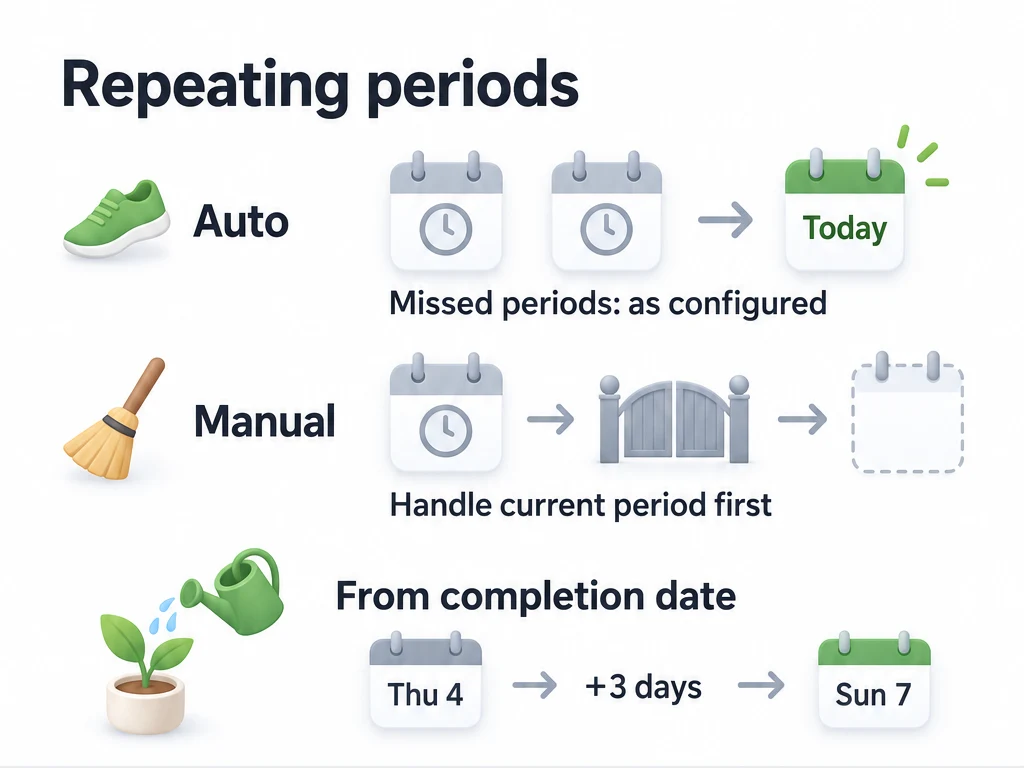
Choose a schedule for the task
| What you want to track | Setup to consider | Result |
|---|---|---|
| Return a parcel | No repeat | Completing it ends the task; no next period is created. |
| Walk 20 minutes each day | Daily repeat, Auto | The schedule keeps up with the calendar. Missed days are handled using your chosen strategy. |
| Clean the bathroom each week, even if you do it late | Weekly repeat, Manual | The unfinished period waits until you complete, skip, or abandon it. |
| Water plants every 3 days after the last watering | Every 3 days, Manual, From completion date | The next period is calculated from the date you finish the current one. |
Keep a daily habit on the calendar
For “Walk 20 minutes,” set the repeat to daily and progression to Auto. Leave Default status for missed cycles on Pending confirmation if you want to review missed days yourself.
Suppose you do not open ulives for three days. When it catches up, those ended periods appear in history as pending confirmation; you can record which walks you did. Today's period can still be current. Auto does not mark missed walks completed unless you explicitly choose that strategy.
| Default status for missed cycles | What happens when a missed period is created |
|---|---|
| Pending confirmation (default) | Waits for your decision; no reward or penalty yet. |
| Abandon (auto penalty) | Becomes abandoned and applies the penalty. |
| Complete (auto reward) | Becomes completed and grants its rewards. |
| Skip (no confirmation) | Becomes skipped, without a reward or penalty. |
For examples of choosing a strategy, see Rewards, penalties, and pending confirmation.
A past start date can affect your balance as soon as you save. Creating or editing an Auto task can create missed periods on Save and apply the selected strategy immediately, including rewards or penalties. Check the start date and strategy before saving.
Let unfinished work wait for you
For weekly cleaning that you still intend to do when you are late, choose Manual progression. The current unfinished period waits for your decision, even when its scheduled date is long past. Complete, skip, or abandon that period to move on; the passing of days alone does not close it.
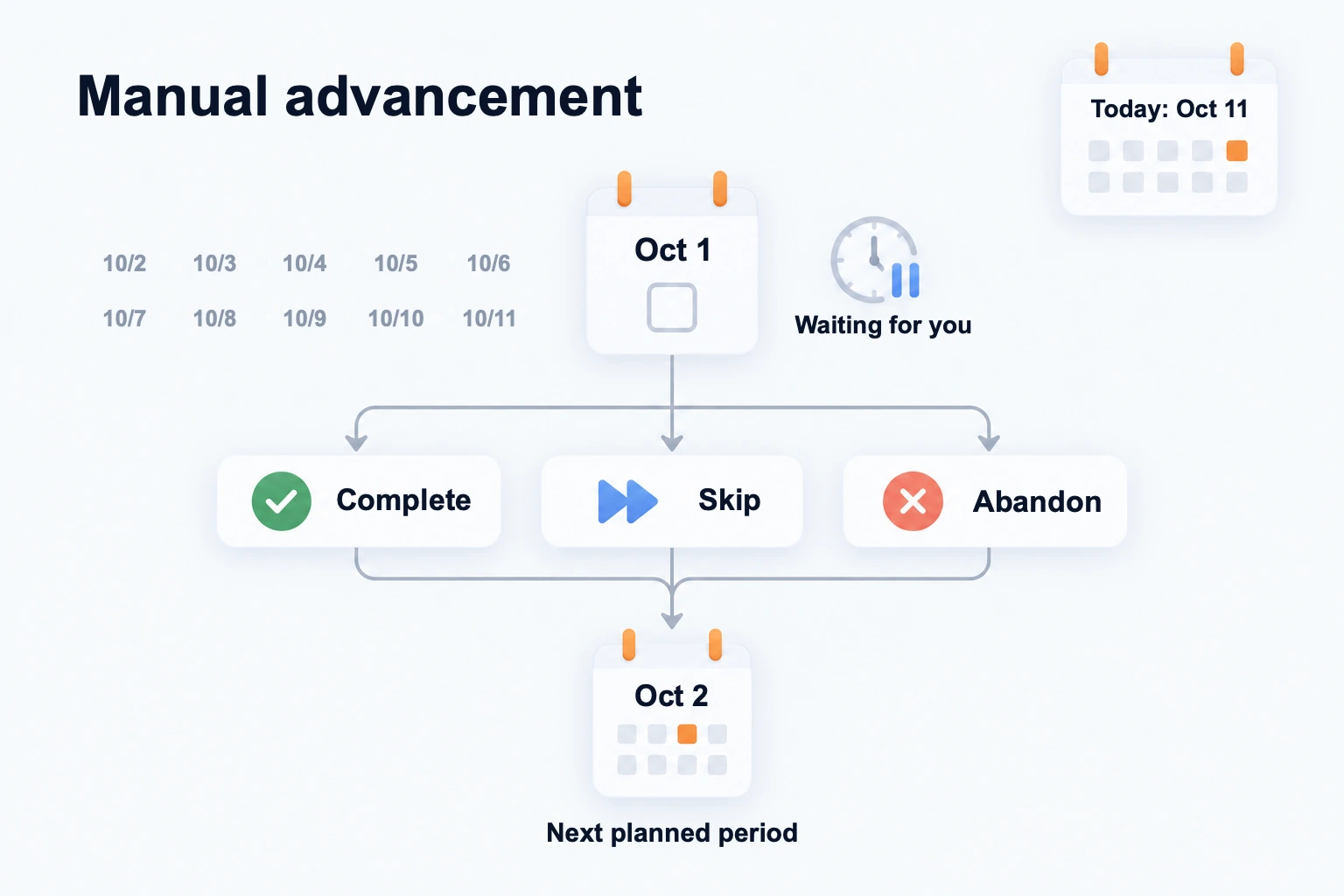
For example, a daily Manual task starts on October 1 and uses the default From scheduled date schedule. If you leave that period unhandled and return on October 11 without changing the recurrence, October 1 is still the period to handle. Today is October 11, but you are deciding what happened to the October 1 occurrence:
| Your decision for October 1 | What is recorded | What comes next |
|---|---|---|
| Complete | October 1 becomes completed and grants its rewards. | A separate October 2 period is created. |
| Skip | October 1 becomes skipped, without a reward or penalty. | A separate October 2 period is created. |
| Abandon | October 1 becomes abandoned and applies its penalty. | A separate October 2 period is created. |
The next period can therefore still be in the past. Handle each outstanding occurrence if you want to catch up with this schedule. October 1 keeps its completed record after completion; the next occurrence is a separate period. Completing an older historical period only updates that record; it does not create a next period. These examples assume the task has not reached its repeat end condition.
Schedule the next haircut or watering from completion
With Manual progression, Repeat schedule defaults to From scheduled date. Choose From completion date when the interval should start after the work is actually done.
| Example | Settings | If you finish late |
|---|---|---|
| Water plants | Repeat every 3 days, Manual, From completion date | The next period is calculated from the day you water them, rather than the earlier scheduled date. |
| Get a haircut | An interval of 1 month, Manual, From completion date | The next period is calculated from the date of the haircut, rather than the missed appointment date. |
The calculation uses your local completion date, not the exact clock time. Watering late at night does not set an interval measured in 72 hours from that moment.
This option requires Manual progression and an interval-based repeat: daily intervals (excluding the weekly “once per week” mode), or monthly/yearly intervals configured in months or years. It is unavailable for Auto, specified weekdays, fixed calendar dates, or other incompatible repeats. Auto always follows scheduled dates and does not show Repeat schedule.
Why is Monday's task still here on Thursday?
With Manual, Monday's unfinished period waits for you. With Auto and Pending confirmation, missed days wait in history for review while the calendar advances. Check the current period in task detail, especially after a large recurrence edit.
Undoing completion, skipping, or abandoning
On a Manual task using From completion date, undoing completion can remove an untouched next period. If you have already acted on that next period, undo may be refused. Skipping or abandoning with this schedule may pass through several old periods before reaching a future one.
Instant-repeat tasks have different history rules; these examples cover daily, weekly, monthly, and similar scheduled tasks.
Some versions still show Chinese recurrence headings in the English interface. Auto and Manual are the progression choices; the descriptions under Default status for missed cycles explain how missed periods will be handled.
Common questions
Can Auto reward me for days I did not record?
Yes, if you choose Complete (auto reward). Pending confirmation is the default and lets you decide what happened before rewards or penalties are applied.
Why is From completion date missing?
Check that the task uses Manual progression and one of the supported interval-based repeats. Auto and fixed weekday schedules do not offer it.