Built-in smart lists
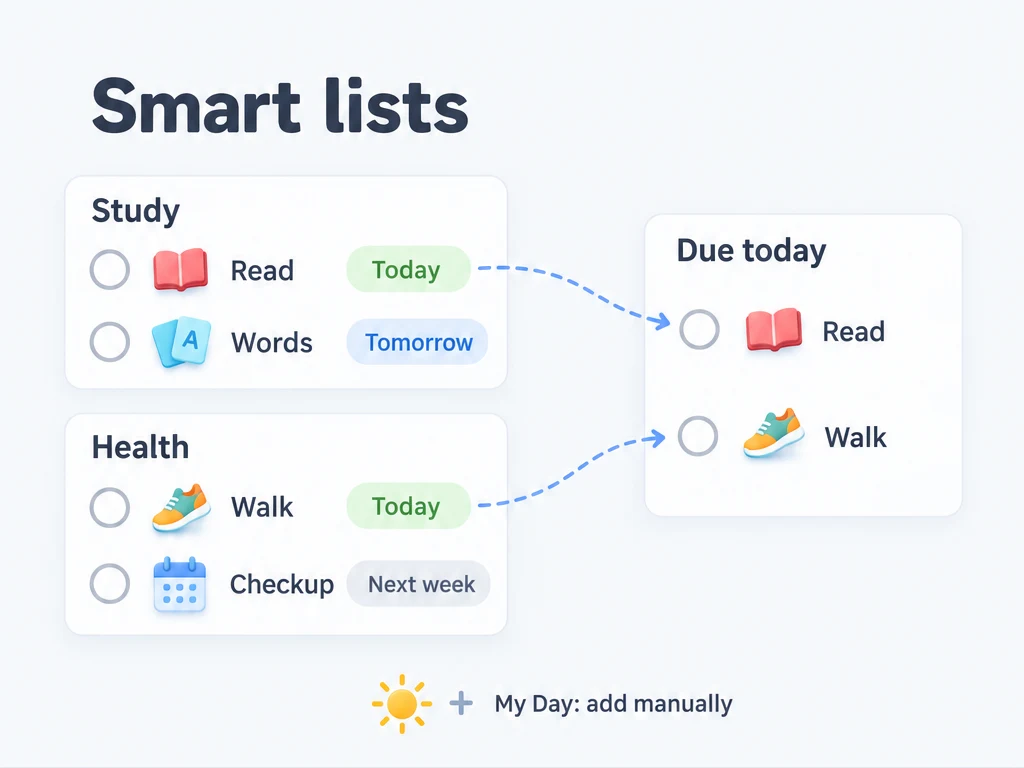
When your tasks are spread across Work, Study, and Health, a smart list can gather what is due without making you check each list. Tasks stay on their regular lists; editing or completing one here changes the same task.
ulives has eight built-in smart lists. Seven filter by date or status. My Day contains tasks you add manually.
Find today's deadlines
If you want to see today's work along with anything you missed earlier, open Due Today and Overdue. If you only want deadlines falling today, use Due Today Only.
The date-based lists check the due time of the task's current period. They include active or paused tasks whose current period is pending or pending confirmation, and exclude archived tasks. A task without a due date will not appear in a date-based list.
For example, a daily task whose current period is still due on Monday does not match Due Today Only on Thursday. Check the current period's due date when a repeating task appears somewhere unexpected.
What each built-in list includes
| Built-in smart list | What appears |
|---|---|
| Due Today Only | Incomplete tasks whose current period is due from today 00:00 up to, but not including, tomorrow 00:00. Earlier overdue tasks are excluded. |
| Due Today and Overdue | Incomplete tasks due before tomorrow 00:00, including today and any earlier overdue date. |
| Next 7 Days | Incomplete tasks due today or on any of the next seven calendar days. |
| Due This Week | Incomplete tasks due from Monday 00:00 to next Monday 00:00, excluding the end time, in your local calendar. |
| Due This Month | Incomplete tasks due from the first day of this month at 00:00 to the first day of next month at 00:00, excluding the end time. |
| Archived | Tasks whose status is Archived, with no incomplete-period filter. |
| Completed Non-Recurring | Non-recurring tasks whose current period is completed. Completed repeating tasks are not included. |
| My Day | Tasks you manually added, regardless of due date. You can have them removed automatically after the current period is completed. See My Day. |
In the Study and Health example, “Read 10 pages” and “Walk 20 minutes” are both due today and unfinished, so Due Today Only shows them together. “Review vocabulary,” due tomorrow, does not appear there.
Why is the badge count different from the list?
Badges can use due-date rules with the same incomplete-task conditions. My Day's list shows all tasks you added, but its badge only counts the incomplete ones. A completed task that remains in My Day can therefore appear in the list without adding to the badge count.
Turn on the lists you need
Open Manage List → Smart Lists and enable Due Today and Overdue to try a combined view of current deadlines and overdue work. You can disable it again without deleting tasks.
Edit Smart List lets you change a built-in list's name, icon, or display group. My Day also has the option to remove a task after completing its current period. The filtering rules of the built-ins stay fixed, even if you rename them.
View one subject across your lists
Suppose you want to see tasks tagged “reading” across several regular lists. In the same Smart Lists area, choose Create Custom Smart List and use a tag filter. You can also filter by list scope, due date, start time, recurrence, and other conditions, including reminders.
Deleting a custom smart list removes only that saved view. The tasks remain on their regular lists. Built-in lists can be disabled or edited, but cannot be deleted.
Common questions
Can I make Due Today Only include next week?
Its built-in rule cannot be changed. Create a custom smart list for your own date range.
Why is an undated task missing?
Date-based lists need a due date to match. Find the task on its regular list, or add it to My Day if you want to work on it now. For the relationship between these lists, see Lists and groups.