Counter tasks
Use a counter task when a number tells you more than a checkbox: pages read, words reviewed, or minutes spent running. You enter the quantity; the app tracks progress against a target. Writing "minutes" as the unit does not start a timer.
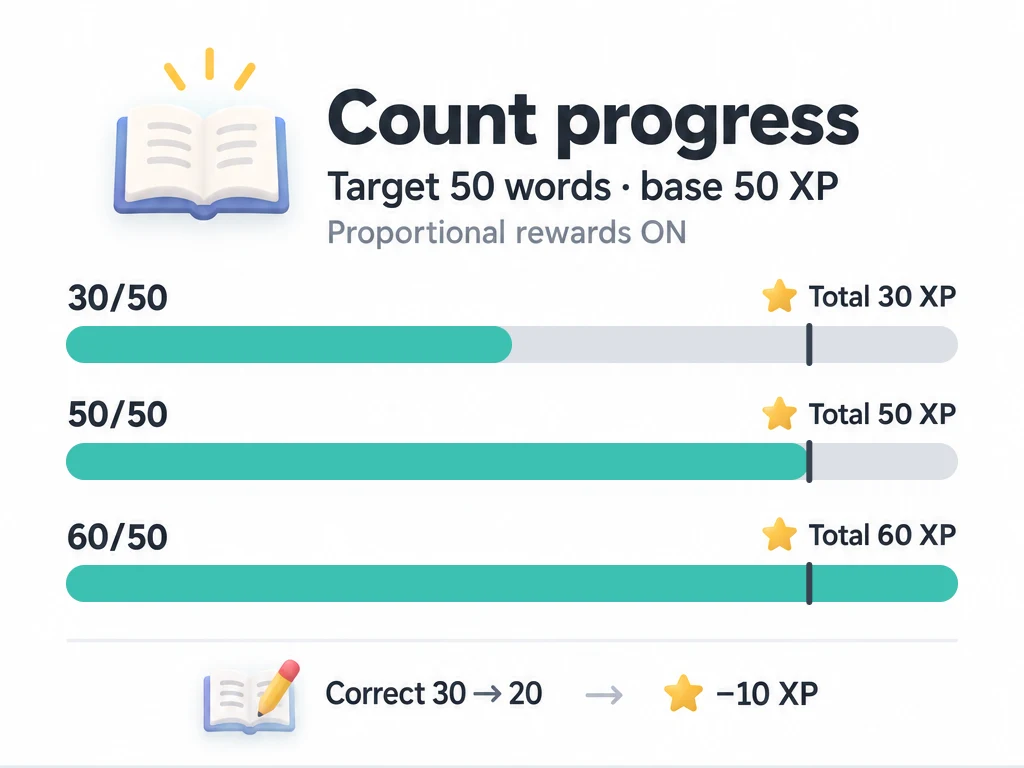
For a first example, create "Review 50 words" and record 30 words today. You can keep the task open, or use proportional rewards to earn something for those 30 words even if you stop there.
Set up your first counter
Start with a task name and normal list. To try the reward examples, choose an attribute or item that can receive a fixed reward. The numbers below are suggestions, not an official scale.
- In the task editor, find Task Type and turn on Counting Task.
- Under Target Settings, set Target Quantity to
50and Count Unit towords. - Under Settlement strategy, choose whether to enable Allow proportional and over-target rewards. Turn it on for the 30-word example.
- Under Interaction Settings, turn off Auto increment on each tap so you can enter a batch of words yourself.
- Set the task's reward to a fixed 50 experience, with no random range, and save. Add a repeat rule only if you want a new target each period.
The target, unit, reward, and input mode are separate settings. A unit is a label; changing it to "points" does not make the app calculate a score from subtasks.
What does auto increment on each tap do?
With Auto increment on each tap on, Increment Quantity appears. It controls how much a tap on the task's completion control adds while the current count is below target. It does not create a new task, subtask, or separate goal for each tap.
For a target of 8 and an increment of 2, taps take the count from 0 → 2 → 4 → 6 → 8. The tap that reaches the target also attempts to complete the period. If the count is already at or above target but the task is still unfinished, that control attempts completion without adding more.
Turn auto increment off when the quantity varies, such as 12 pages in one sitting and 18 in another. Tapping the completion control then opens the count input panel. You can also open task details and choose Adjust in the count section, including when auto increment is on.
Auto increment responds to your taps. It does not count pages, words, steps, or elapsed time in the background.
Add a batch or correct a number
The count panel has three operations. Check the preview before confirming:
| Operation | Starting at 30, enter 5 | Result |
|---|---|---|
| Increase | Add 5 to the current count | 35 |
| Decrease | Subtract 5 from the current count | 25 |
| Set to | Replace the current count with 5 | 5 |
Increase and Decrease take a positive quantity. Set to also accepts zero. A decrease stops at zero rather than making the count negative.
Use Set to when you know the total: entering 30 records 30, rather than adding another 30. With proportional rewards enabled, correcting the count downward can also take back rewards already granted.
Decide when to finish
For an unfinished period, reaching a target and marking it complete are related, but the input mode matters:
| How you record progress | What happens |
|---|---|
| Auto increment on the completion control | A tap that reaches or exceeds the target attempts completion, including with proportional rewards enabled. |
| Count panel, proportional rewards off | Confirming a count at or above target attempts completion. A below-target count stays unfinished. |
| Count panel, proportional rewards on | Force complete controls whether this confirmation also attempts completion. You can finish below target, or leave an over-target period unfinished to keep adding progress. |
In the proportional count panel, Force complete initially follows the preview: on when the target is reached, off below target. Once you change it yourself, your choice stays in effect while you adjust that panel. Check this switch before confirming if you want to keep accumulating beyond the target.
For the 50-word task, enter 30 and leave Force complete off to keep working later. Turn it on if 30 is today's final result. Either way, proportional rewards settle at 30 experience; finishing does not top that up to 50.
Completion still respects any subtask completion rule. Force complete is not a way around Require all subtasks. For a repeating task, finishing also affects the next period, so check repeat and advance before using completion just to dismiss the task.
How proportional rewards add up
With proportional rewards off, changing the count alone does not grant the task reward. Completing the period grants its configured reward once, without multiplying it for an over-target count.
With proportional rewards on, each saved count change settles the difference between the new reward total and what this period has already received. The reward total for each experience or item reward is:
round down(configured reward × current count ÷ target count)
For a target of 50 and a fixed reward of 50 experience, try this sequence in the same period. Use the count panel and leave Force complete off until you want to finish:
| Action | Count | Reward total for this period | Change this time |
|---|---|---|---|
| Set to 30 | 30/50 | 30 | +30 |
| Correct it to 20 | 20/50 | 20 | −10 |
| Increase by 40 | 60/50 | 60 | +40 |
| Finish at the same count | 60/50 | 60 | 0 |
There is no 100% reward cap at the target in this mode: 60/50 earns 120% of the base reward. The counter settings do not offer a separate reward ceiling. If you want a fixed reward for completing the period, leave proportional rewards off.
Small rewards can round down to zero. With a target of 8 and a reward of 5 items, a count of 1 gives floor(5 × 1 / 8) = 0; a count of 2 gives a total of 1 item; a count of 8 gives a total of 5. A zero change after one tap does not necessarily mean settlement failed. For rewards with a random range, the chosen reward amount is the basis for the ratio; use fixed rewards while learning the behavior.
Reading, running, and a daily score
- For reading, set a target of 20 pages and a fixed reward of 20 experience. With proportional rewards on, recording 12 pages gives 12 experience; reaching 25 pages gives 25. Use manual input and leave Force complete off if you plan to keep reading.
- For running, set a target of 30 minutes and a fixed reward of 30 experience. Enter the time you measured yourself. A 25-minute run earns 25 experience with proportional rewards on. If you want 10/20/30 reward brackets instead, use independent subtasks.
- For a daily score, set the target to 100 and unit to points, then enter your own total, such as 70. The 100-point subtask example explains a scoring convention. Subtask rewards do not feed this counter automatically. If the subtasks already reward the work, keep the counter's rewards empty to avoid paying twice.
Common questions
Does reducing the count count as a penalty?
A proportional reward correction takes back the difference caused by the lower count. A task penalty is separate and uses your penalty settings.
For example, with a base reward of 100 experience and a target of 100, recording 25 earns 25 experience. If you then abandon that period with an experience penalty factor of 20%, the penalty is 20 experience from the base reward, leaving a net gain of 5. It is not 20% of the 25 you earned, and it is not calculated from the missing 75 points. Merely recording a below-target count does not apply this abandonment penalty.
Does completing or undoing completion settle the whole reward again?
For a proportionally settled period, completing or undoing completion at the same count does not add or remove the full base reward. The count drives settlement. To correct the amount earned, correct the count; do not rely on undoing completion to retract it.
Can I change the target or reward after making progress?
Changing the target or unit, switching proportional rewards on or off, or changing a proportional task's rewards can reset unfinished periods' counts and retract their settled rewards. Set these up before recording progress, and check any confirmation before saving an edit. Completed and pending-confirmation periods are not reset by this unfinished-period update.
Can a subtask add 10 to the counter?
Not through these settings. A subtask can grant its own reward, but its title and reward quantity are not a numeric contribution to the parent counter. Enter the total yourself, or use the subtask-only scoring convention without a counter.