Lists and groups
A Health list can hold “Walk 20 minutes” and “Book a checkup”; a Study list can hold your reading tasks. These are regular lists, where tasks are stored. Each task belongs to exactly one.
As you add more lists, groups help organize them in the sidebar. Smart lists let you view matching tasks from several lists together. Date-based views are covered in Built-in smart lists; to choose today's work yourself, see My Day.
Organize work and personal lists
You can use lists without any groups. If the sidebar starts to feel crowded, try organizing it like this:
| Group you create | Lists you put in it | How you use it |
|---|---|---|
| Work | Current project, Admin | Keep work lists together. |
| Personal | Study, Health, Chores | Find everyday tasks outside work. |
| Archive | Lists for finished projects | Keep older lists and their tasks without deleting them. |
“Archive” here is just a group name you choose. Moving a list there does not automatically archive its tasks or put them in the built-in Archived smart list. Tasks still belong to their regular lists, not directly to a group. A group can contain both regular lists and smart lists.
In Manage List, move a list to the group you want, or remove its group assignment to leave it ungrouped. This is useful when a project finishes and you want its list out of Work without losing its history.
See today's tasks across lists
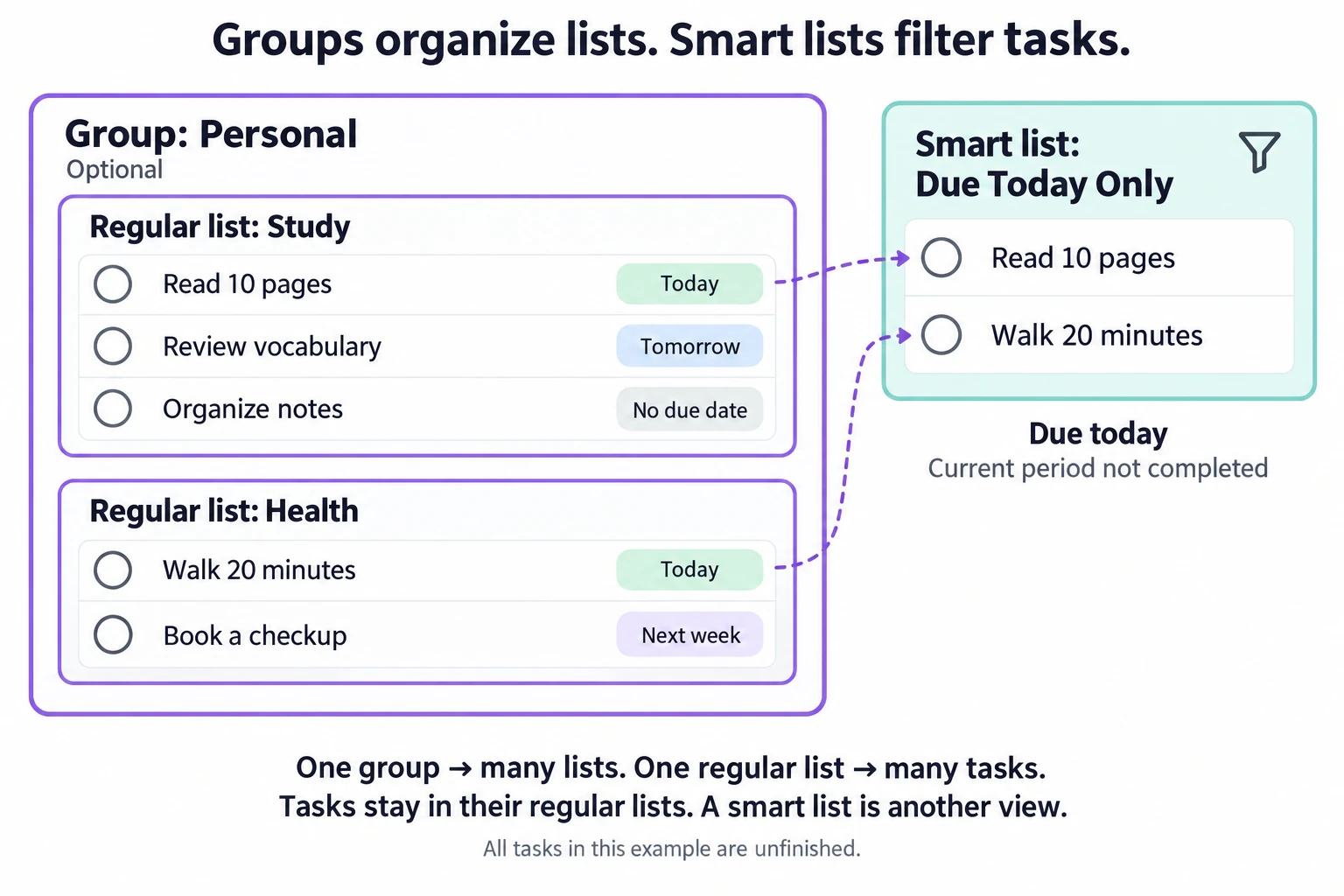
Suppose the Personal group contains Study and Health, with these tasks. Each task's current period is unfinished (pending or pending confirmation).
| Regular list | Task | Current period due |
|---|---|---|
| Study | Read 10 pages | Today |
| Study | Review vocabulary | Tomorrow |
| Study | Organize notes | No due date |
| Health | Walk 20 minutes | Today |
| Health | Book a checkup | Next week |
Open Due Today Only and you will see “Read 10 pages” and “Walk 20 minutes” together. The other tasks fall outside today's due-date window. A daily repeat alone does not make a task appear here; the current period must be due today.
Editing or completing a task in the smart list changes the same task on its regular list. It does not create a copy.
Create a list and add a task
- Open Manage List and create a regular list called Health.
- Choose a display group if you want one, then save.
- Open Health, tap +, and enter a task title. Check that Health is selected, then save. See Create and manage tasks.
If you start from a smart list, follow the same rule for choosing a regular list.
When adding a task from a smart list, including My Day, you still choose a regular list to store it on. After saving, it appears on that regular list and in any smart list whose rules it matches. My Day shows it when you add it there manually.
Before deleting a list or group
Deleting a regular list deletes all its tasks and their history. If you only want to tidy the sidebar, move the list to another group or leave it ungrouped instead.
| What you delete | What remains |
|---|---|
| Regular list | Smart lists remain, but the deleted list's tasks no longer appear in them. The regular list and its tasks are removed. |
| Group | Its lists and tasks remain. The lists become ungrouped; smart-list rules are unchanged. |
| Custom smart list | Its tasks remain on their regular lists. Only the saved view is removed. Built-ins cannot be deleted this way. |
If you delete every regular list, you may still see groups and smart lists. To save a new task, first create and select a regular list. A new list lets you add new tasks; it does not restore deleted tasks.
Common questions
Does completing a task in a smart list move it?
No. It is the same task on its original regular list. Its status changes, which may make it stop matching the smart list's rules.
Can I recover a deleted list by creating one with the same name?
No. A new list does not restore the deleted tasks or their history. Use groups to put older lists aside when you want to keep their contents.