Archive or delete a task
Your exam is over, and you no longer need “Review vocabulary” in your daily routine. You may still want its completion history, or want to correct an old period later. Archive the task to keep that option. Deletion is better reserved for tasks you are sure you no longer need, such as a disposable test task.
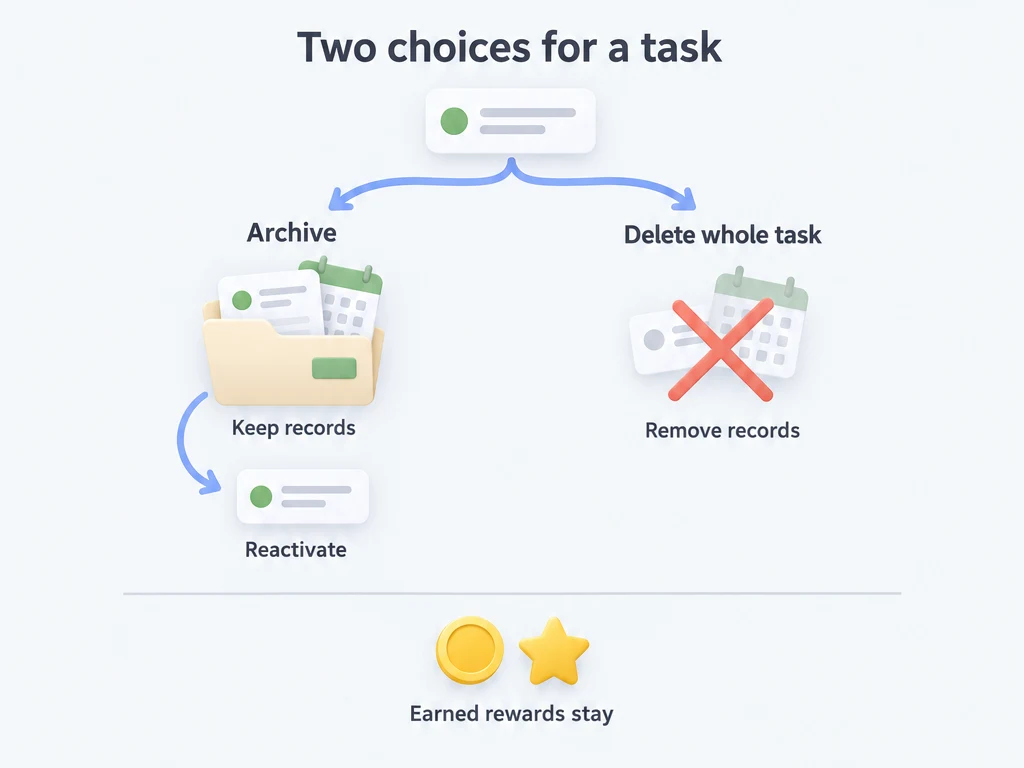
Archiving keeps the task and its periods. Deleting the whole task removes both, although it does not take back item rewards or XP already earned from it.
Before you start
Find the task in its regular list. If you did the work for its current period, mark it complete first when you want that completion and its rewards recorded. Archiving alone does not complete a period or award its rewards.
For a repeating task, decide whether you want to put away the entire task or handle just one occurrence. Use Skip or Abandon to handle an occurrence; use Archive to put away the task. See Repeat and advance.
Put a task away
- Long-press the task to open its action menu.
- Choose Archive.
- Check the task name in the confirmation and confirm.
The task appears among archived tasks and keeps its original regular list. Its history remains available. Automatic advancement no longer moves it through new periods while it stays archived.
You do not need to create an “Archive” list or group for this action. Those names are optional ways to organize your sidebar, not requirements for archiving.
Find, edit, or reactivate it
Open the task's regular list and expand its Archived section. You can also use the built-in Archived smart list when that entry is enabled.
- To change the task itself, long-press it and choose Edit. Archived tasks also retain Move to List.
- To correct a recorded period, open the task details, find the period in its history, and open its period-status menu. The menu offers changes such as Complete, Skip, and Abandon according to the period's current status.
- To use the task again, long-press it and choose Reactivate. Confirm if prompted.
Changing a period's state can grant or revoke rewards, or apply or reverse penalties. Archiving preserves the ability to correct records; it does not make those corrections consequence-free.
Check its repeat rule and overdue-period handling first. Reactivating an automatically advancing task can fill in elapsed periods according to those settings, including rewards or penalties. Do not treat archiving as a holiday mode that guarantees the intervening dates will be ignored.
Keep finished projects together
For example, you could keep old study tasks in a regular list called “Finished courses” and put that list in a group called “Past projects”.
- In Manage Lists, create the destination regular list if you need one.
- Long-press a task, choose Move to List, and select that list. You can move an archived task this way too.
- In Manage Lists, edit the list's group placement to put it in your chosen group.
The task belongs to the regular list. The group holds lists, not tasks directly. Moving a task or changing a list's group does not archive the task or stop its repetition. Use Archive on the task when that is your intention.
A group named “Archive” has no special archiving behavior. For more on organizing the sidebar, see Lists and groups.
Deleting a regular list also deletes its tasks, including archived tasks. Deleting a group leaves its lists and tasks intact, with the lists ungrouped.
Delete only when you no longer need the record
- Long-press the task and choose Delete.
- Read the confirmation. For some repeating-task periods, you can choose between deleting only that period and deleting the whole task.
- If you intend to remove the entire task, select that option and confirm only after checking the warning.
Deleting the whole task removes its periods and subtasks. You can no longer reopen those periods to change their states, and there is no Reactivate action for a deleted task. Creating a task with the same name does not restore them.
Item rewards and XP already earned remain. The task's reward settings are removed along with the task; this is different from reversing an earlier completion.
Deletion also removes the records used for task-period statistics and can affect automatic-achievement calculations that depend on those periods, such as a streak for that task. Completion totals based on recorded activity use a different source and are not simply erased along with the task. Do not assume deletion resets every statistic or removes all previously unlocked achievements. If those records matter to you, prefer archiving.
The repeating-task menu's “delete only this period” action reverses that period's rewards and penalties before removing it. Deletion from a history-period screen has its own option for whether to reverse rewards and penalties. Read that choice carefully; the whole-task rule about keeping earned rewards does not apply to every period-deletion action.
Common questions
Why archive if I am unlikely to use the task again?
It keeps the history available for checking or correction, while taking the task out of active work. You can still edit it, move it, or reactivate it later. Deletion gives up those options.
Does archiving erase progress toward an automatic achievement?
Archiving retains the task's periods. Deleting removes them, which can change period-based calculations. Neither operation should be used as a blanket “undo all rewards and achievements” action.
Can I archive a whole project by moving its list into a group?
That only reorganizes the sidebar. Archive the tasks themselves if you want them to stop advancing automatically. Keep the regular list so their records remain available.