Getting started with gamification
Suppose you want to walk more often and save up for a movie night. In ulives, you can make the walk a task, give yourself a coin when you complete it, and spend those coins on a reward you set up in the Shop. You choose the rewards and arrange them in real life.
Start with the walk. Repeats and rewards are optional, so you can try the task on its own before adding them.
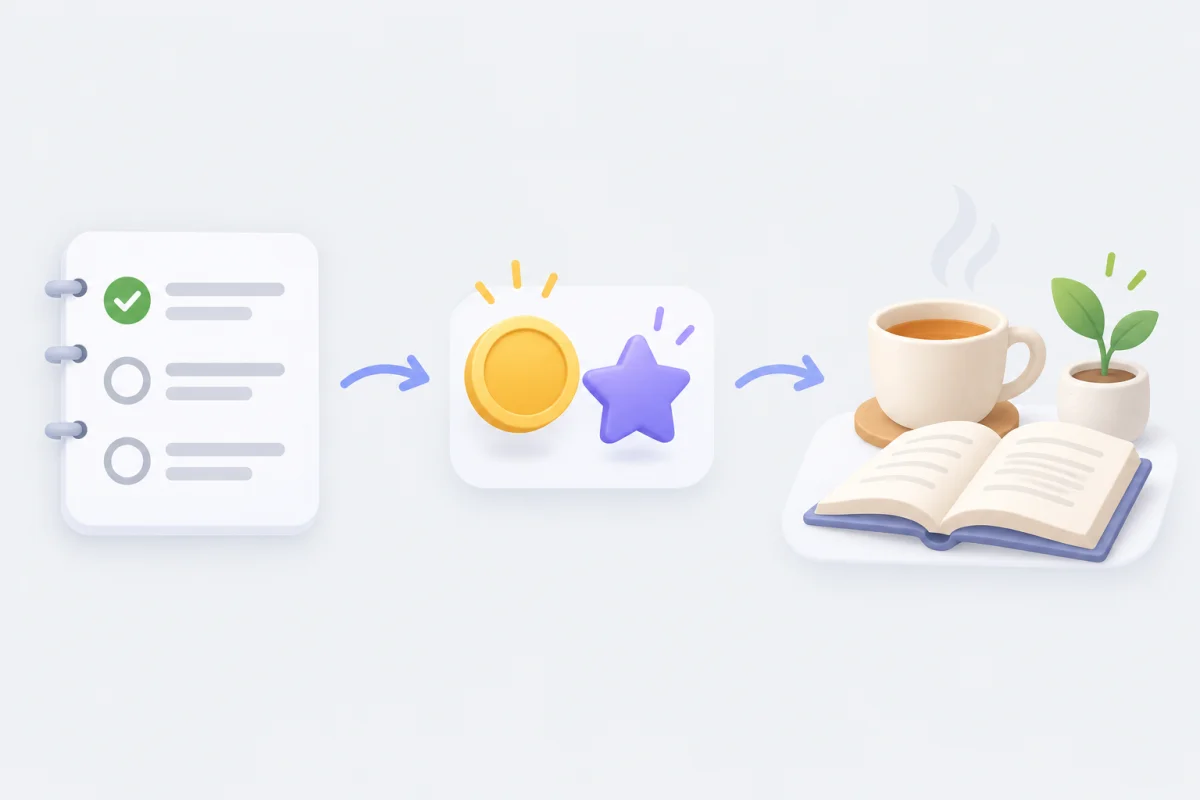
Create “Walk 20 minutes”
Tasks belong to a regular list, also called an ordinary list. In your active profile, open a regular list you want to use; Lists and groups explains how to create one. The steps below use iOS labels.
- Tap + and enter “Walk 20 minutes” as the title.
- Check the List row. If you started from a smart list or My Day, you still need to choose a regular list as the task’s home.
- Save. The task is ready to use with just its name and list.
After your walk, mark the task complete. Create and manage tasks covers editing and the other task actions.
If you want to walk regularly
Open the task’s Edit screen, then Edit recurrence and reminders to set a daily or weekly repeat. You can also leave it as a one-time task. The Repeat and advance guide explains how the next period starts, including automatic advancement.
Give the walk a small reward
In the task’s Rewards, choose Coins (or another currency item) and set the amount to 1 per completion. Completing a period then earns the configured reward.
As you add tasks, you might give longer or harder ones a larger payout. For example, you could rate tasks by subjective difficulty and assign 1 coin for easy, 2 for medium, and 3 for hard. You set these amounts yourself; ulives does not calculate those tiers for you. Estimated time is another way to choose amounts. These are examples, not an official reward scale.
Rewards and penalties usually settle when a period ends, such as when you complete, abandon, skip, or confirm a pending period. Saving an edit normally leaves the current period unsettled. With Auto advancement and a start date in the past, saving can backfill missed periods and apply rewards or penalties according to your default strategy for missed cycles. Abandoning a task can also deduct XP or currency when rewards and penalties are configured. See Rewards, penalties, and pending confirmation before using those rules; you can leave penalty settings at their defaults while trying the basics.
Save up for a movie night
Suppose your tasks earn about 20 coins in a typical week and you would like a weekly movie night. Create a movie-night item in the Shop and price it at 20 coins. When you have enough, buy it and use it to record the reward, then arrange the movie yourself. Items and inventory walks through item setup and use.
After a week or two, compare the price with what you actually earned. If the movie feels too far away, lower its price or raise task payouts. A treat such as a movie, game, or snack is a useful starting point; keep essentials such as rent, meals, and medicine outside this reward budget.
Coins, diamonds, and tomatoes are items in the Shop’s Currency group. You can rename them or create a currency such as “Workout coins.” If you want that balance shown in the Shop and on Status, select it under Settings → Shop settings → Primary currency.
See which areas get your attention
You can also give a reading task Study XP. Once you configure that reward, completing the task adds experience to Study on the Status page. If Study keeps growing while an area you want to work on stays low, choose a task for that area and give it a matching XP reward. Attribute levels reflect the rewards you have assigned, not a test of your ability. Attributes and levels follows this example and explains level models under Settings → Attribute settings.
Record time spent reading
If you want to set aside reading time, open Focus and choose Pomodoro, countdown, or stopwatch. Select a Focus Task when you want session history or rewards. This is separate from checking off a task on a list, and break segments do not grant Focus XP. See Focus sessions for setup and reward rules.
Track a longer goal
Once you have a reading routine, you might want an achievement for completing the reading task a certain number of times. Set that condition in the automatic achievement editor. It tracks accumulated completions; naming it an annual goal does not make it reset each year. Automatic achievements explains cycles, Premium requirements, and how to claim rewards for each list display style.
Common questions
Can I just use tasks?
Yes. Tasks with no rewards are valid, and you can leave Shop, attributes, Focus, and automatic achievements unused.
Will ulives charge me for entertainment automatically?
No. It does not monitor offline activity or automatically charge you for entertainment. You price and buy Shop rewards yourself, then redeem them in real life. Penalties for abandoning tasks are configured separately.
For the full rules, open Settings → Help → User manual in the app.