Reward templates
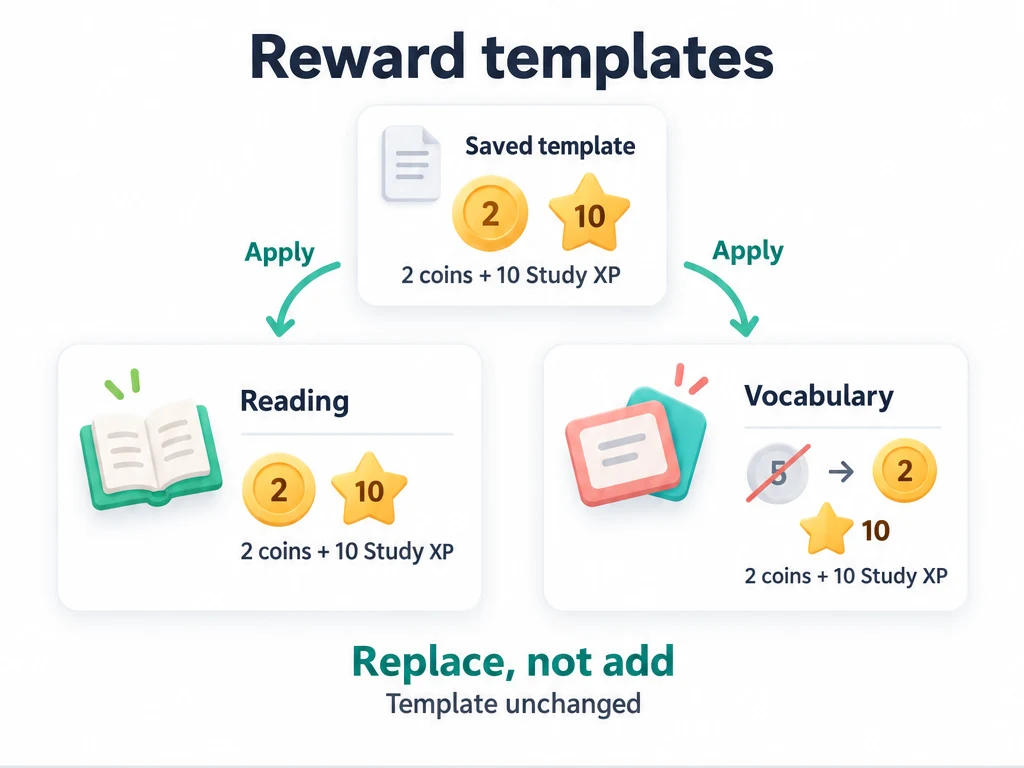
Reading, vocabulary practice, and revision might all use the same Study XP reward. Save that combination as a reward template so you can choose it on the next task instead of selecting attributes and amounts again. You can keep a separate template for exercise.
Start with a task whose rewards you want to reuse. The attributes and any items or currency must already exist; see Attributes and levels and Items and inventory if you need to create them.
Save a study reward
- Create or edit a reading task and find Reward Settings.
- Choose your Study attribute and enter an XP amount. Add an item or currency reward if you want one. For example, you could use 10 Study XP and 2 coins; these are sample amounts, not an official scale.
- Open the … menu beside the Reward Settings heading and choose Save as Template….
- Name it "Study session" and confirm. It will appear in the template shortcuts in the rewards section.
The template stores the XP and item reward selections. It does not copy the task's name, list, schedule, or completion rules. Save the task too if you want to keep its edits.
Reuse it on another task
Open a vocabulary task for editing, find Reward Settings, and tap "Study session" in the template shortcuts. Use More Templates if you need to search for it. Check the resulting rewards, adjust them for this task if needed, then save the task.
Applying a template replaces both the current XP rewards and the current item rewards; it does not append to them. A Study-only template will also clear an existing coin reward if that template contains no items. Check any replacement confirmation and review both reward sections before saving.
For exercise, configure a walking task with XP for your exercise attribute and save it as "Exercise session." Choose the appropriate template when making the next task. Changing a task's rewards after applying a template does not change the saved template or other tasks.
Applying a template fills in reward settings; it does not complete the task or grant the rewards immediately. Task completion and any penalties still follow the task's rules. In particular, saving an Auto task with a past start date can settle missed periods. See Rewards and confirmation before changing rewards on those tasks.
Tidy up your templates
Open the Reward Settings heading's … → Manage Templates menu to rename, reorder, or delete templates. To keep a revised reward combination, adjust it in a task editor and save it as a new template. You can delete the old one once you no longer need it.
Deleting a template cannot be undone. It removes that reusable choice, but does not remove rewards already saved on tasks.
Templates belong to the current profile, so check which profile is active if your usual choices are missing.
Common questions
Why did my coins disappear from the reward settings?
The template replaced the whole selection, including items. Add the coins again before saving, or use a template that includes them.
Why is an attribute or item missing after I apply a template?
If an attribute or item saved in the template has since been deleted, applying the template cannot restore it. Choose an existing replacement, check the amounts, and save a new template if you want to reuse the revised rewards.