Statistics
At the end of a week, you may feel busy without knowing where your time went. Statistics summarizes the active profile’s task completions, achievements, Focus time, XP, reflections, and Shop activity for a period you choose.
Use it to compare weeks or review a month. If you need to find one particular completion or purchase, open the Activity Timeline instead.
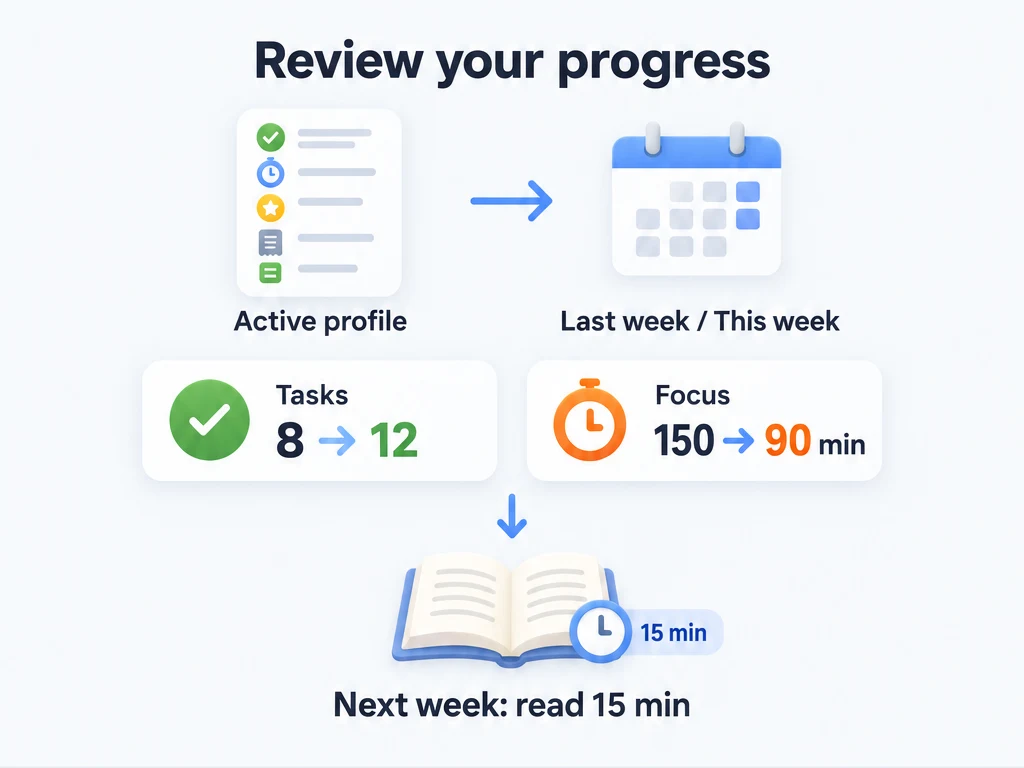
Review this week before planning the next
On a phone, open Status → Statistics. On a larger screen with a sidebar, open Statistics there.
- Choose This week at the top. Read the task completion count and total Focus duration.
- Switch to Last week and compare the same two numbers. You can also choose a day, month, year, All time, or a Custom range; most cards follow the selected range.
- Look at the daily trends to find when the difference occurred. Use the Focus Task distribution to see where your recorded time went.
- Write down one change to try next week in My Reflections.
For example, suppose these are your recorded totals:
| Metric | Last week | This week | What to check next |
|---|---|---|---|
| Task completions | 8 | 12 | Were the extra completions small errands or the work you wanted to prioritize? |
| Focus duration | 150 minutes | 90 minutes | Which Focus Tasks account for the difference? Was the time actually recorded? |
More completions alongside less Focus time is not a contradiction. You may have cleared small tasks while spending less time reading. If that matches your reflections, try adding a 15-minute reading session next week rather than increasing the number of tasks. These numbers are examples, not a productivity target.
Read the numbers for the question you have
| Your question | What to look at |
|---|---|
| Did I keep up with my tasks? | Task completion totals and trends count completions in the selected range, using the completion-time mode below. A repeating task can contribute in more than one period. |
| Where did my recorded Focus time go? | The overview shows Focus count and total duration. The duration trend shows when you focused; Focus Task distribution splits the time by Focus Task. |
| Which attributes received XP? | XP totals and trends show experience gained during the range. Attribute XP distribution shows where it went; this is different from your current attribute levels. |
| What milestones did I reach? | Achievement unlock totals and trends show unlock activity during the range. |
| How did I feel? | Reflection counts, writing totals, and mood distribution summarize saved reflections by their creation date. The mood chart counts reflections, so a day with several notes contributes several entries. |
| Which rewards did I buy or use? | Purchase and use rankings count recorded actions, not your current inventory. The purchase-consumption ranking shows which currencies or items you spent on purchases. |
The overview also shows changes against a comparison period where available. The attribute ranking shows current levels and XP, and Recent Achievements shows the latest unlocks. These two cards do not follow the selected date range. For example, switching from This week to Last week does not rewind your attribute levels.
Why did today’s completion count on another day?
A repeating task’s period and the day you complete it can differ. For example, if a period ended yesterday and you complete it today, the counting mode determines which day receives that completion.
Open Statistics → gear → Statistics settings → Task completion time statistics:
| Mode | How the example is counted |
|---|---|
| Period time first | Uses the period end time, so the completion counts toward yesterday. If there is no period end time, it uses the completed time. |
| Completed time absolute | Uses the completed time, so the completion counts toward today. |
Choose the first when you want to review which periods you fulfilled, or the second when you want to see when you actually completed the work. Changing the mode recalculates task overviews, trends, and distributions. It leaves the timeline’s events unchanged.
Check an unexpected number
Start by checking the active profile, date range, and task completion-time mode. Task statistics count completed task periods; reflections are counted from saved notes. Many other totals use recorded activities, which you can inspect in Activity Timeline. The timeline and Statistics therefore do not always have matching row counts. Task lists and smart lists show the work you can act on now or in the current period.
If you find a history row you want to delete, read the warning first. Deleting a timeline row can change statistics and achievement progress, but does not take back items or rewards already received. See Activity Timeline for deletion rules.
Review how rewards and reflections fitted into the week
If you bought “Movie night” once and used it once, check the purchase ranking and use ranking separately. They summarize those two actions; they do not tell you how many rewards remain in the inventory. To inspect the 80-coin purchase itself, find it in Activity Timeline.
For mood, suppose you saved four reflections: two running notes with 😊, a movie-night note with 😊, and a work note with 😔. The chart summarizes four notes: three with 😊 and one with 😔. It does not mean three days were cheerful or that running caused the mood. Read the notes to see what was happening before deciding what to repeat.
Common questions
Why are the charts empty or out of date?
Check the active profile and try All time. A new profile needs task completions or recorded Focus sessions before those charts have data. After returning from the background, tap the toolbar refresh button if you need an updated view.
Why is Focus time lower than expected?
Only recorded sessions count. Break segments and timers run without a selected Focus Task follow the Focus recording rules; they do not count as completed tasks here.
Why is the mood chart empty?
Check that the active profile has saved reflections whose creation dates fall inside the selected range, then refresh. The reflection editor has no empty-mood choice. Even if you only type text, saving retains a mood and the reflection contributes to the chart. Choose a mood explicitly when writing if you want the distribution to reflect how you felt.
Related pages
- Activity Timeline: inspect events and filter the history.
- Reflections (Thoughts): keep context alongside the numbers.
- Profile Management: switch to the profile you want to review.