Standard Card
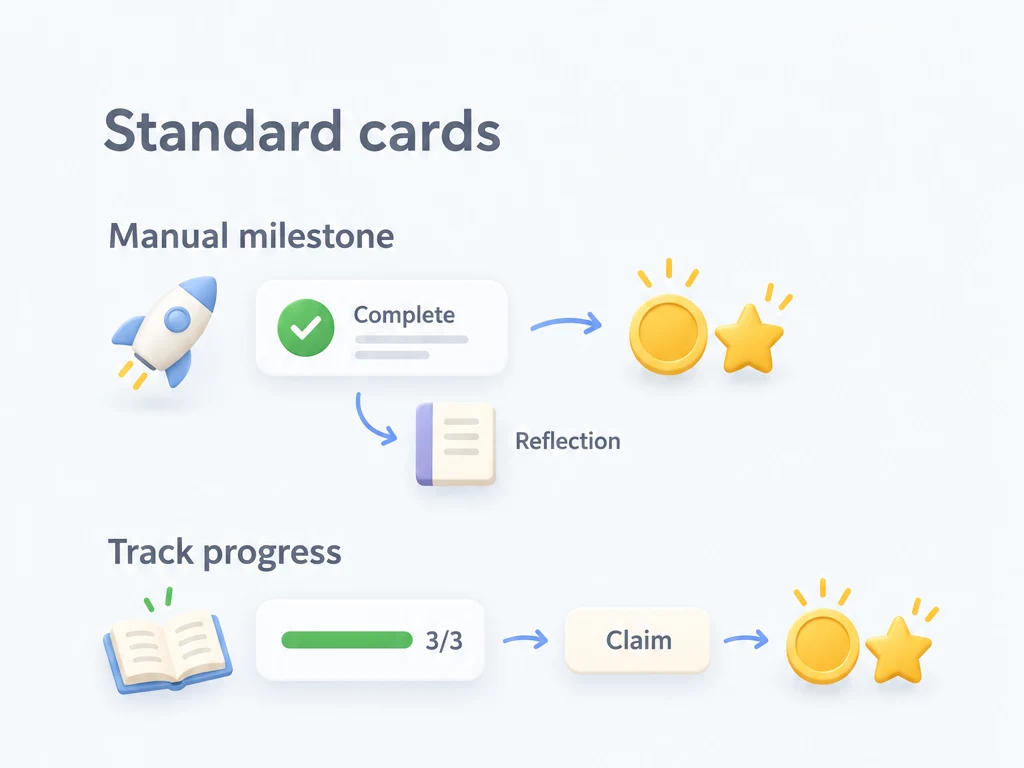
Use Standard Card for milestones you want to give some space to, such as publishing a side project or running your first half marathon. Each goal has its own card. You can mark it complete when you reach it and write a reflection about the experience.
Standard Card is the default, free display style. Manual completion and automatic tracking are set separately for each achievement; the overview explains how they fit together.
Set up a life goals list
- Open Achievements, then Manage lists, and create "Life goals". You can also create a list from the empty screen.
- Keep Display mode on Standard Card and save. When editing an existing list, you can choose Standard Card in the same field.
- Open the list, tap
+, and add "Publish a side project" with automatic tracking off.
Add other milestones as you need them. If you want a reward for finishing the whole list, configure a list reward in its settings. Once every achievement that counts toward progress is done, you can claim that reward from the header.
Record a milestone when you reach it
After publishing your project, tap the circle on the right of its card. The achievement changes to completed, counts toward list progress, and gives any configured rewards and feedback. It stays complete until you undo it. Tapping the circle again undoes completion and revokes rewards where the app supports reversal, so check before undoing an achievement you meant to keep.
Tap the card body to open its details. To write about what you learned while making the project, use Reflection in the card's long-press or context menu. You can also edit or duplicate the achievement there. Treat Delete as permanent.
An automatic achievement shows progress on the card. When its conditions are met, use Claim on that card to collect the configured item or attribute XP rewards. You can also open details to review and claim them. It cannot be completed with the manual circle or a quick-complete gesture.
Viewing existing conditions is free, but saving them requires Premium; see automatic achievement membership rules. Checklist Pill and Countdown also require Premium to save; Standard Card does not.
Manual and non-repeat automatic cards can show their unlock date. Repeat automatic cards may show ×N for completed cycles, but those cycles do not contribute to list progress.
Change rewards for several goals
If you want several milestones to have the same reward, open batch mode in the toolbar, select the relevant cards, and use batch edit rewards. Batch mode is available in every display style and does not mark all selected goals complete.
It also offers batch deletion. Deleting removes every selected achievement, including completed ones, and cannot be undone. Check the number in the confirmation dialog before continuing.
Common questions
Why did tapping the card open a page instead of completing it?
The card body opens details. Use the circle on the right to complete or undo a manual achievement.
Why hasn't automatic progress changed?
Open the list to check it again; progress is not guaranteed to update while the app is closed. Check the selected conditions and records using the automatic achievement guide.
If you later move to a Countdown layout, read its date rules before undoing a completed entry. Undoing after its target day has passed affects whether it will complete automatically again.